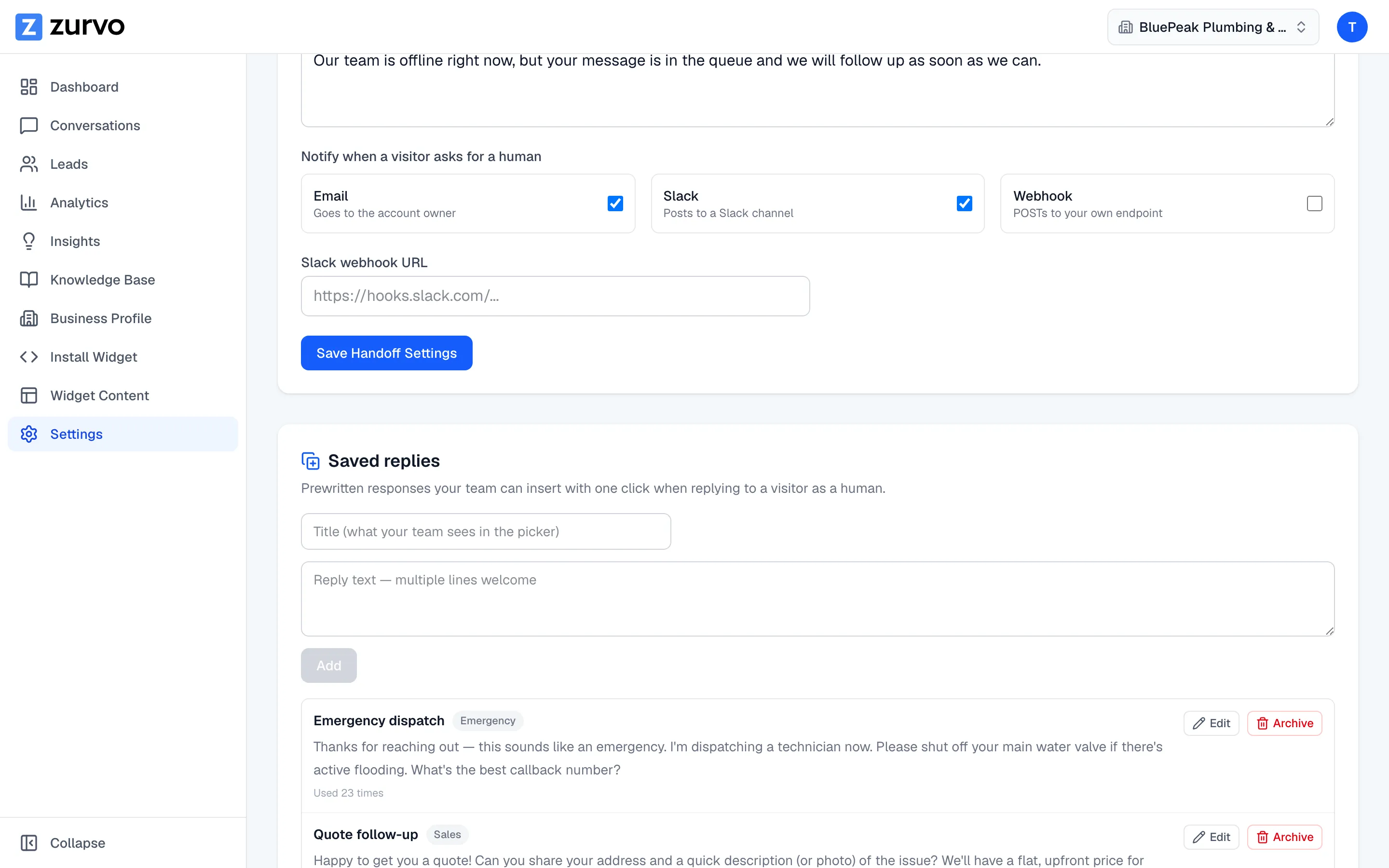
Create and insert saved replies.
Build a library of prewritten saved replies your team can drop into a conversation with one click, and manage them from the Settings page.
Saved replies are prewritten responses your team can insert into a conversation with one click — perfect for the questions you answer over and over. They keep your team’s answers consistent and fast.
Create a saved reply
Saved replies live in Settings, in the Saved replies section on the Settings page.
- Go to Settings and find the Saved replies section.
- Enter a Title — this is what your team sees in the picker.
- Enter the reply text in the body. Multiple lines are welcome.
- Click Add.
Your new reply appears in the list below, with a running count of how many times it’s been used.
Edit or archive
Each saved reply in the list has Edit and Archive actions:
- Edit loads the reply back into the form so you can update its title or body.
- Archive takes the reply out of the picker without deleting it. Archived replies stop showing up in the composer dropdown; the ones your team still uses stay front and center.
Insert a saved reply into a conversation
When you’re replying as a human:
- In the composer, click Saved replies.
- Pick a reply from the dropdown — each shows its title and a short preview.
- The reply text drops into the composer. Edit it if you like, then send.
To edit the library itself, open Settings and find the Saved replies section under Human Handoff.
Who can manage the library
Anyone who can reply to conversations can insert an existing saved reply. Creating, editing, and archiving replies is limited to owners, admins, and agents. If you don’t have it, you’ll see a note explaining you can use saved replies but not manage them.
Pair saved replies with internal notes to keep your team aligned as you work a conversation.