Use the team inbox.
Open the Conversations inbox to see every visitor chat in one list — search by name, email, or message text, read the status badges, and page through history.
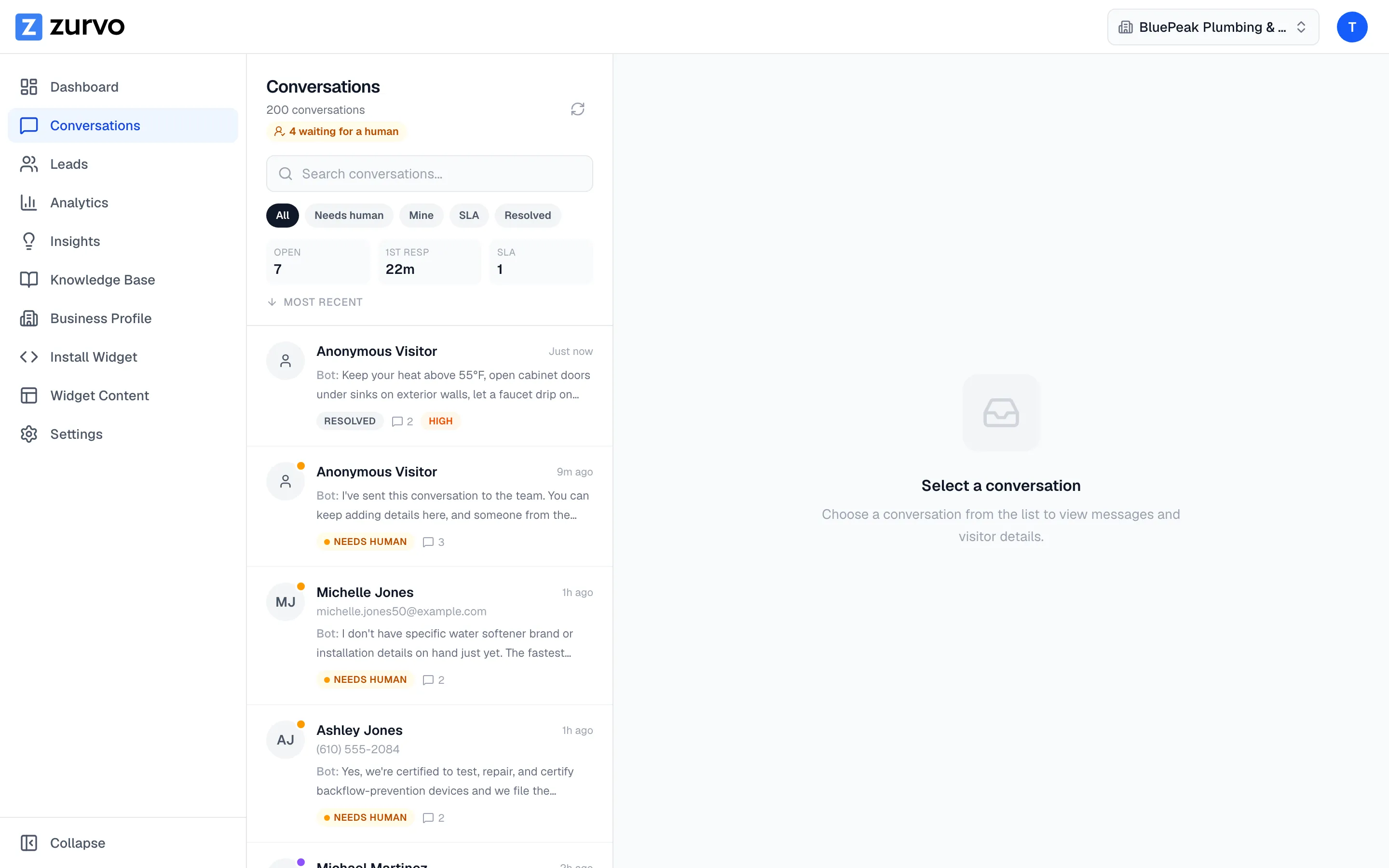
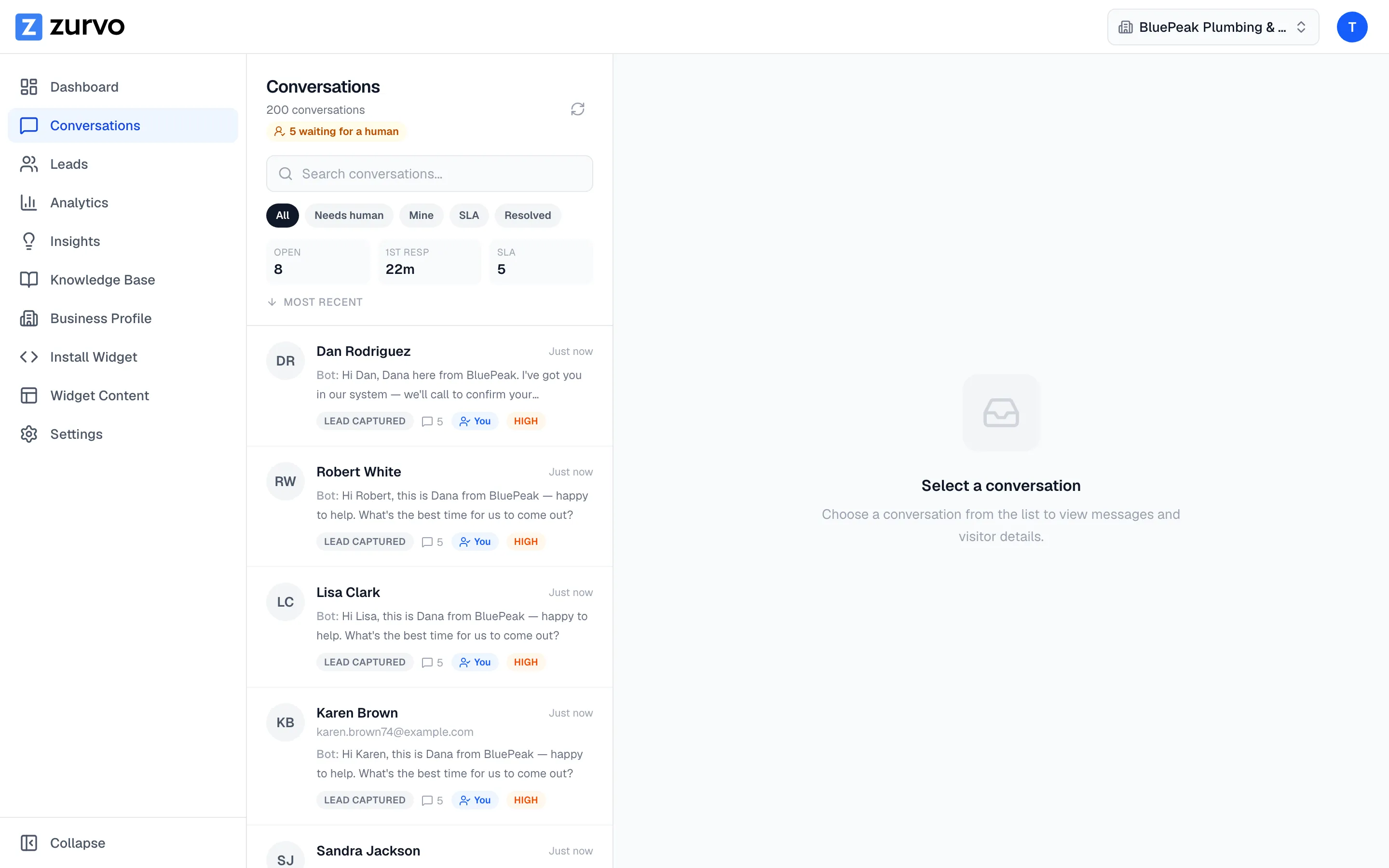
The Conversations inbox is where your whole team works incoming visitor chats. Open Conversations from the sidebar and you’ll see every conversation your chatbot has had, most recent first.
Watch conversations live.
The open conversation updates in real time — new visitor messages and AI replies appear within a few seconds, so you can follow a chat as it happens. Everything about the conversation (visitor contact, status, assignee, notes, and the AI summary) lives in the details panel on the right, which you can collapse or open with the panel button in the conversation header.
The conversation list
The left panel is your list of conversations. Each row shows:
- The visitor — their name, email, or phone if they shared it, otherwise “Anonymous Visitor.”
- A preview of the last message, with a
Bot:or teammate-name prefix so you can tell who spoke last. - A status badge (Active, Needs human, Human active, Waiting on visitor, or Resolved).
- The message count and when the conversation was last updated.
The list is sorted by Most Recent — whichever conversation was updated last sits at the top.
Badges tell you what’s happening
Small badges on each row surface what needs your attention without opening the conversation:
- Status — the current state of the conversation.
- Priority — a colored tag when a conversation is set to low, high, or urgent (normal isn’t shown).
- Assignee — who’s handling it, if anyone has claimed it.
- A red thumbs-down count when a visitor rated one or more of the bot’s answers unhelpful.
Search your conversations
Use the search box at the top of the list to find a conversation fast. Search matches the visitor’s name, email, and phone, the assigned teammate, and the text of the messages themselves — so you can find a chat by something the visitor actually said.
Open a conversation
Click any row to open the full thread on the right, with every message grouped by date and the visitor’s details in the header. On a phone, the thread takes over the screen and a back arrow returns you to the list.
Page through the list
When you have more than 25 conversations in the current view, pagination controls appear at the bottom of the list. The count at the top of the panel tells you how many conversations you’re looking at — and, when a search or filter is active, how many of the total that is.
Next, learn how to filter the inbox by queue so you can focus on the conversations that need a human right now.