Set up and understand human handoff.
See how a visitor asks to talk to a human, what happens when they do, and how to configure handoff — the enable toggle, notifications, response targets, and offline message.
Human handoff lets a visitor escalate from the AI to a real person on your team. Here’s how it works from both sides, and how to configure it.
What the visitor sees
The chat widget includes a Talk to a human action. When a visitor uses it (or asks for a person in plain language), Zurvo:
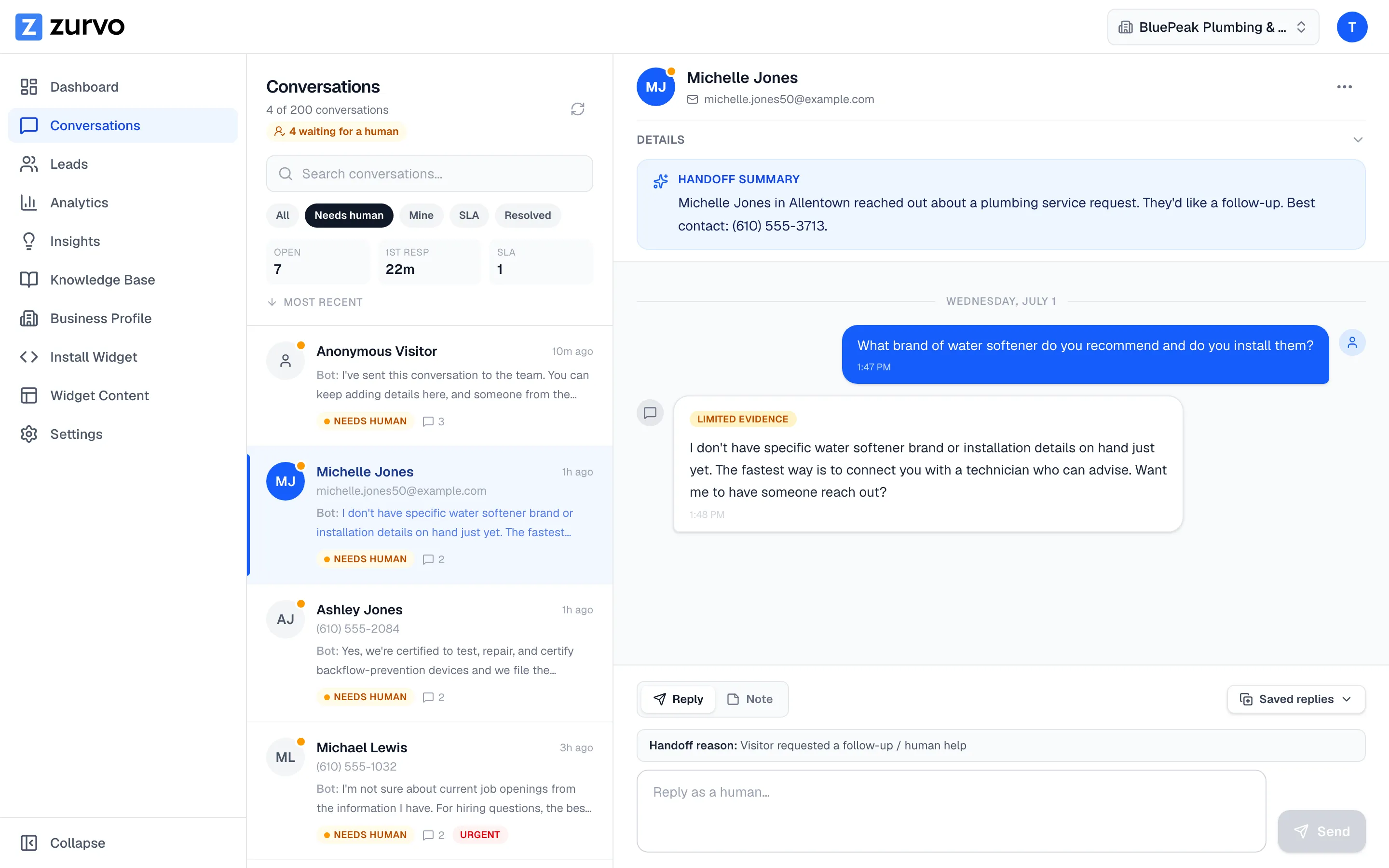
- Moves the conversation into your Needs human queue.
- Sends the visitor an acknowledgement — a message letting them know the conversation has gone to the team and someone will follow up. They can keep adding details in the meantime. Once a teammate has actually joined, the bot goes quiet: the visitor’s messages flow straight to your team with no automated replies in between.
- Notifies your team so someone can pick it up.
While a person is handling the chat, the widget shows status banners to the visitor — “a team member has joined,” “waiting on your reply,” or “team notified” — so they always know where things stand. Replies you send appear live in the visitor’s widget, which polls for new messages so they don’t have to refresh.
What your team sees
The handoff lands in the Conversations inbox under Needs human. On the first handoff request, Zurvo also generates a short handoff summary of the conversation so whoever picks it up can grasp the issue at a glance. From there your team replies as a human and drives the status to resolution.
Configure handoff
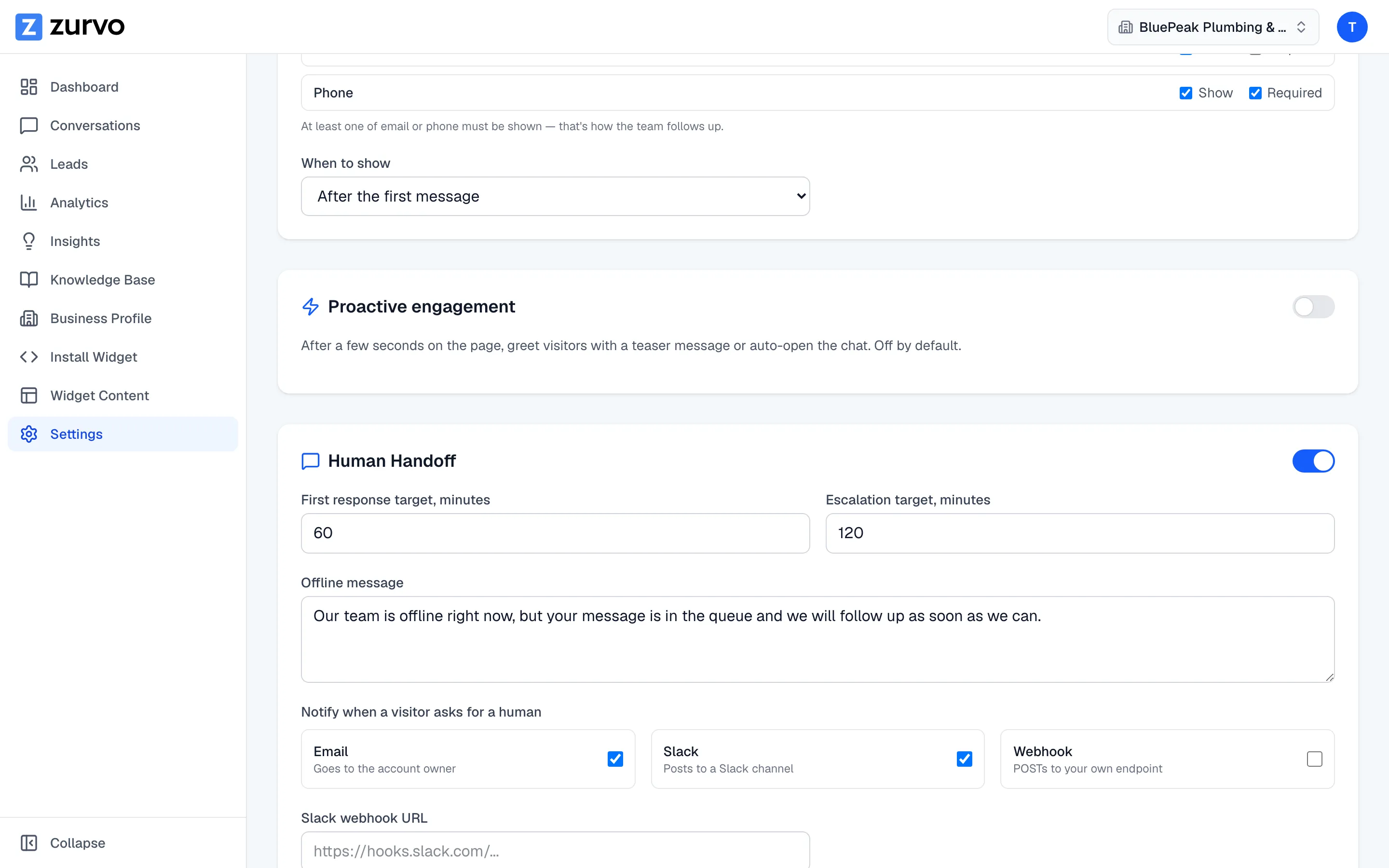
Handoff settings live in Settings, in the Human Handoff section.
Turn handoff on or off
The toggle in the section header enables or disables handoff, and a small On/Off pill next to the section title always shows the saved state.
- Turning it off is immediate — flip the toggle and handoff is off; no save needed. Visitors asking for a person then get your offline message outside business hours (weekdays 9:00 AM–5:00 PM Eastern) or a friendly acknowledgement during them, and the “Talk to a human” option disappears from the chat widget’s menu.
- Turning it on takes one more step — flipping the toggle opens the settings so you can review them first, and handoff only goes live when you click Save Handoff Settings. Until then you’ll see a “Not live until you save.” reminder, and the pill stays Off.
Response target
- First response target (minutes) — how quickly you aim to send a first human reply. This sets the deadline the SLA queue and analytics measure against.
Offline message
Set the offline message shown to visitors who ask for a person while handoff is turned off outside business hours, so they still get a clear, friendly response and know their message is in the queue.
Notifications
Choose how your team is alerted when a visitor asks for a human:
- Email — goes to the account owner’s email.
- Slack — posts to a Slack channel (add your Slack webhook URL).
- Webhook — POSTs to your own endpoint (add the URL).
Save the section with Save Handoff Settings. To see how your team is keeping up once handoff is live, check the handoff SLA and analytics.