Create your account and set up your first chatbot.
Sign up for Zurvo, walk through the onboarding wizard, and get your first chatbot ready to go live.
Getting started with Zurvo takes about five minutes. You create an account, walk through a short setup wizard, and Zurvo builds your first chatbot for you. This guide covers each step so you know what to expect.
Sign up
Go to app.zurvo.ai/login?mode=signup. On the Create your account screen, choose how you want to sign up:
- Continue with Google — sign up with your Google account in one click.
- Use your email address — Zurvo asks for your email, a password, and a confirm password. The two passwords must match before you can continue. Then check the box to agree to the Terms of Service and Privacy Policy — the Create Account button stays disabled until you do — and click Create Account.
If you sign up with email, we send a confirmation email — click the link in that email to confirm your address before you continue.
Signing in later works the same way: on the Sign in to your account screen, choose Continue with Google or Sign in with your email, then enter your email and password. You can switch between the two screens with the Don’t have an account? Sign up and Already have an account? Sign in links.
The onboarding wizard
Once you’re in, Zurvo walks you through a four-step wizard to set up your first chatbot. You can move quickly — the business name and two quick questions (your goal and how you found us) are required; the rest is optional or take a few seconds.
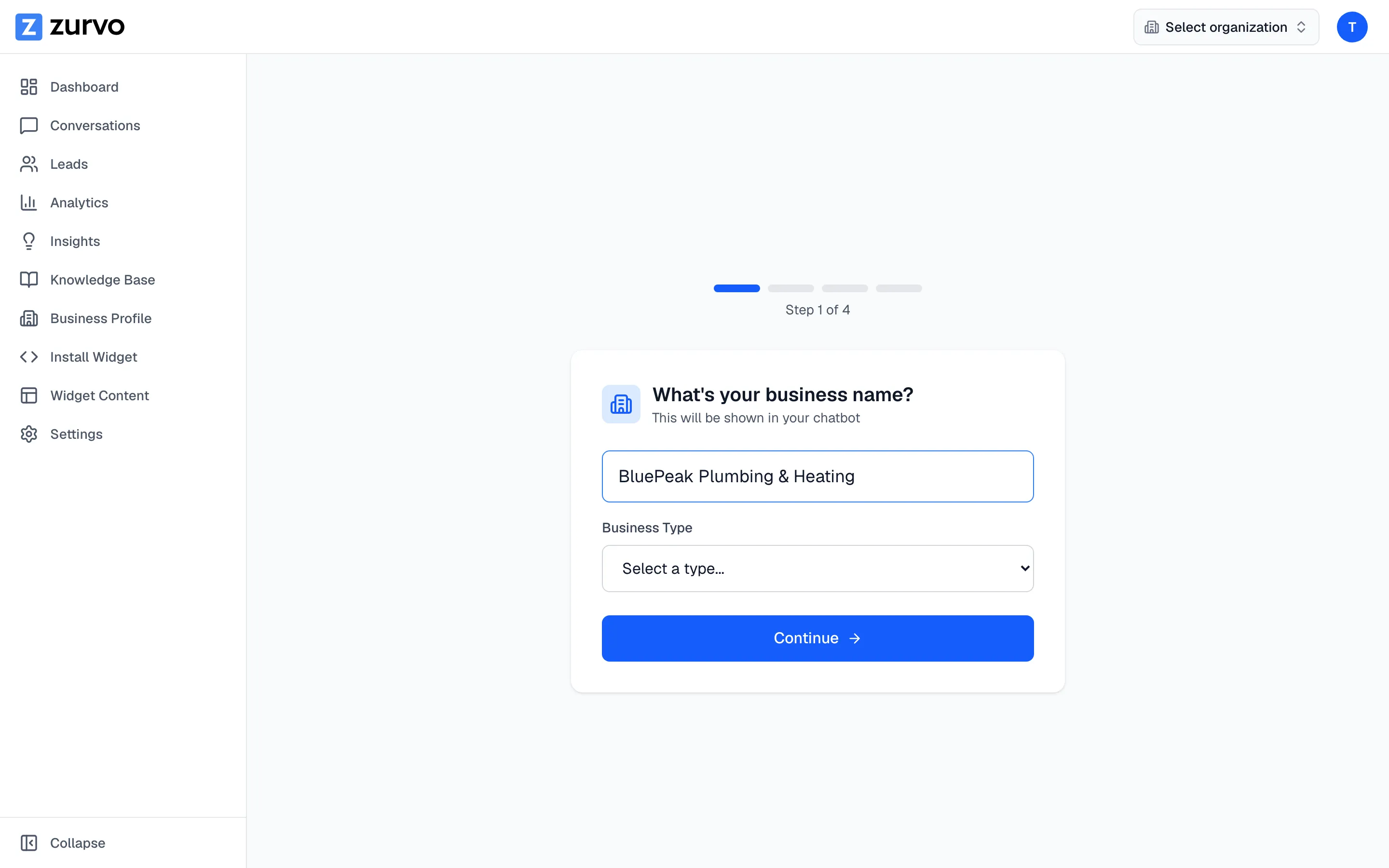
- Business name and type. Tell Zurvo your business name and what kind of business you run. This helps tailor the chatbot’s tone and defaults.
- Website URL (optional). Add your website so Zurvo knows where the chatbot will live. You can skip this step and add your site later when you train the chatbot.
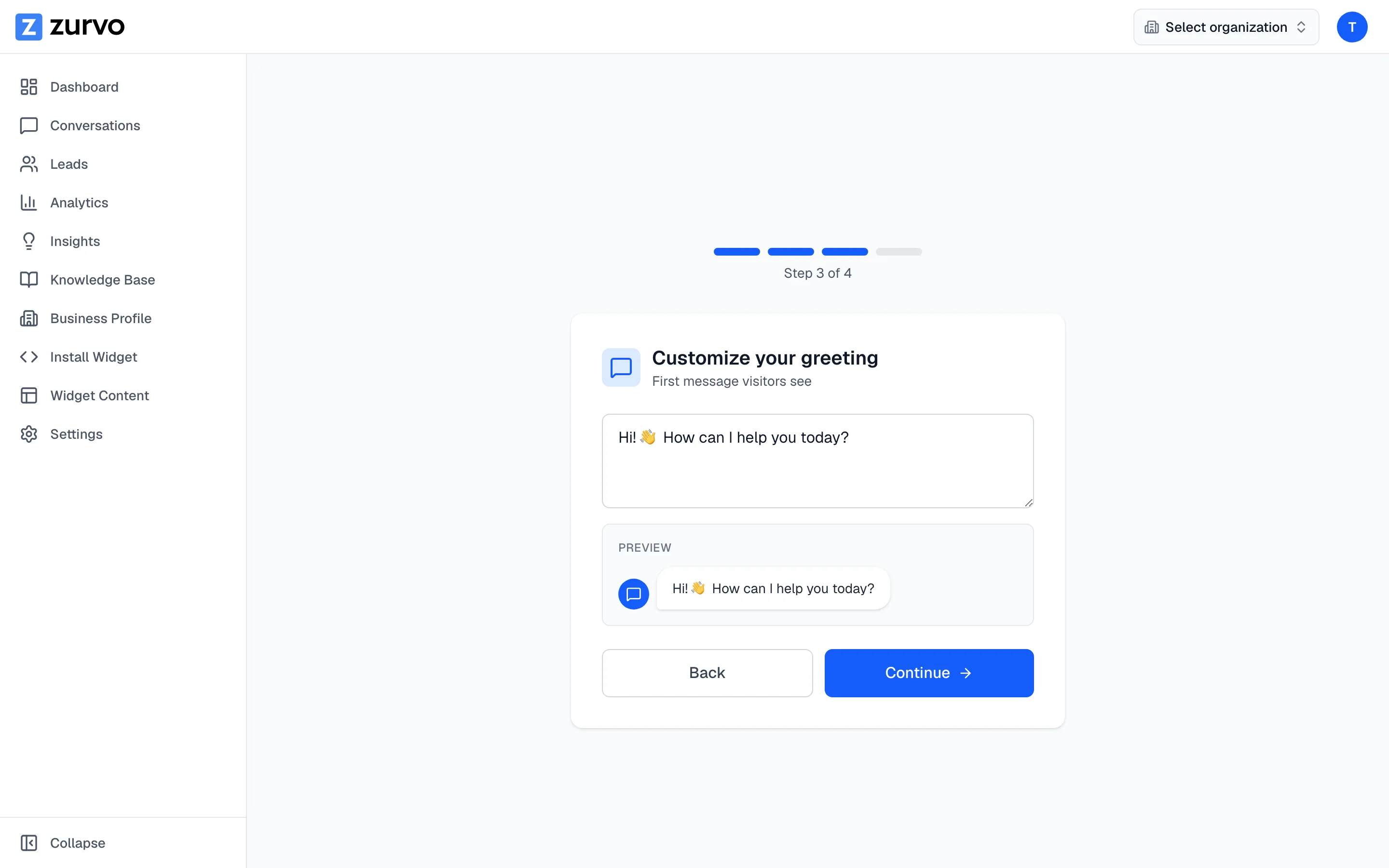
- Greeting. Write the first message visitors see when they open the chat. A live preview shows exactly how it will look as you type.
- Plan selection. Choose the plan that fits your business. This is where you start your free trial.
Your organization and chatbot are created
When you finish the wizard, Zurvo automatically creates your organization (your workspace) and a default chatbot inside it. You don’t have to set these up by hand — they’re ready for you to train and customize.
A plan is required to finish
To take your chatbot live, you need an active plan. When you choose a plan in the wizard, Zurvo hands you to Stripe to start your 3-day free trial and enter your payment details.
Until your trial or subscription is active, your chatbot stays paused — it won’t answer visitors on your site yet. Everything you’ve set up is saved, so once your plan is active you can pick right back up and go live.
Next, learn how the plans and trial work in Start your 3-day free trial and choose a plan.