The dashboard at a glance.
A quick tour of the Zurvo dashboard — the navigation, your home stats and quick actions, and the account menu.
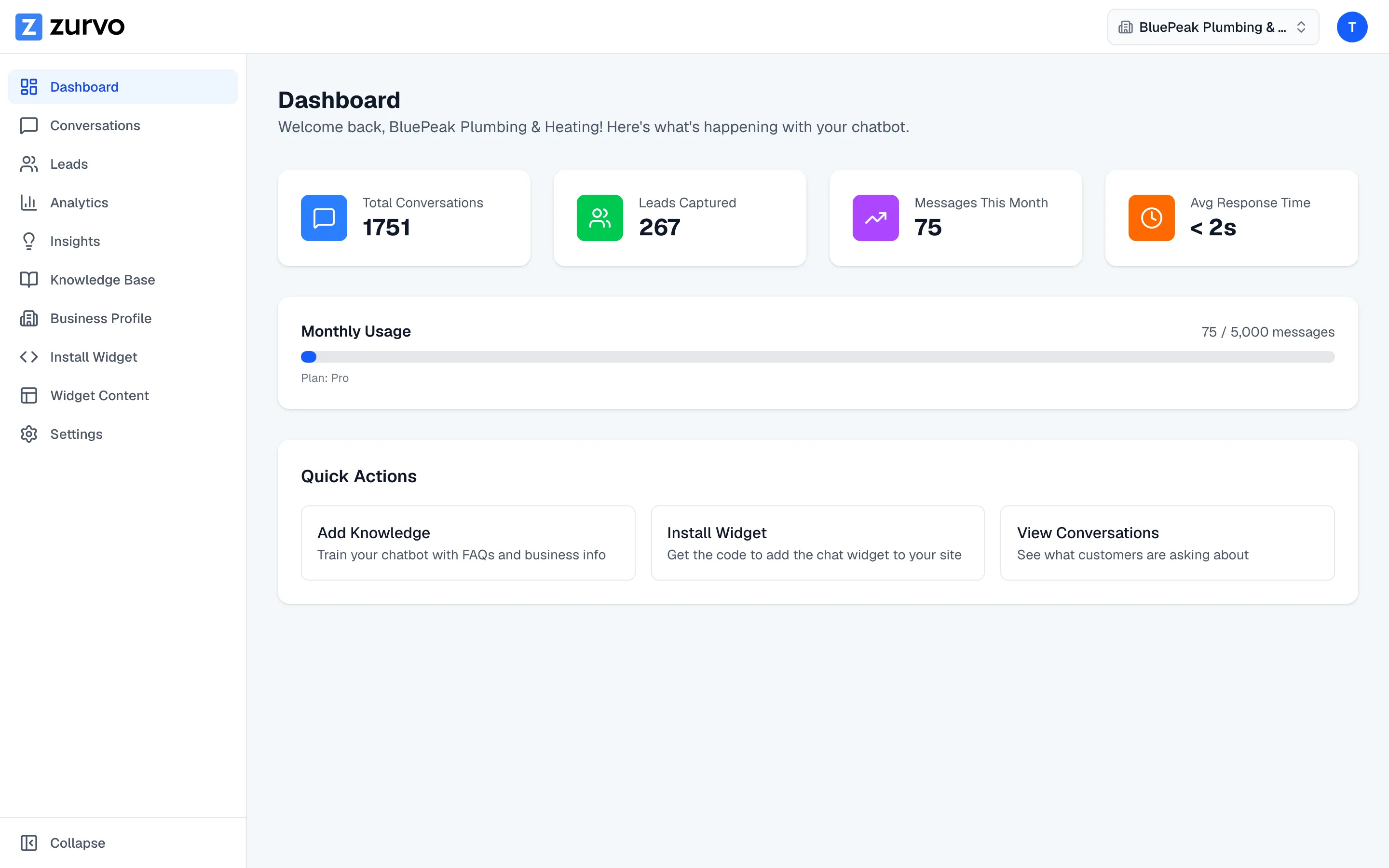
When you sign in, you land on the dashboard home. Here’s what you’ll find and where to go next.
The navigation
A sidebar runs down the side of the app and links every part of Zurvo — your chatbot’s training and knowledge base, the widget settings, conversations, leads, insights, team, and billing. Wherever you are in the product, the sidebar gets you back to any section in one click.
Your home page
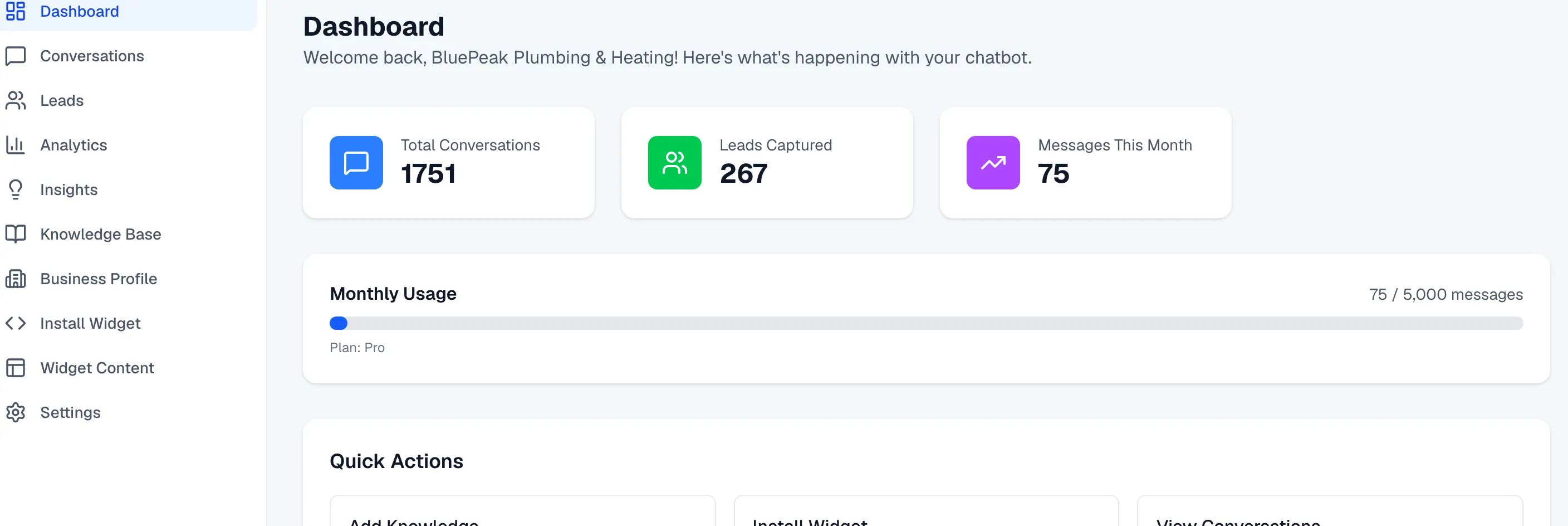
The home page gives you a snapshot of how your chatbot is doing:
- Stat cards summarize your recent activity at a glance.
- A usage bar shows how much of your monthly message allowance you’ve used, so you always know where you stand against your plan’s limit.
- Quick actions put your most common next steps — like training your chatbot or grabbing your install snippet — one click away.
The account menu
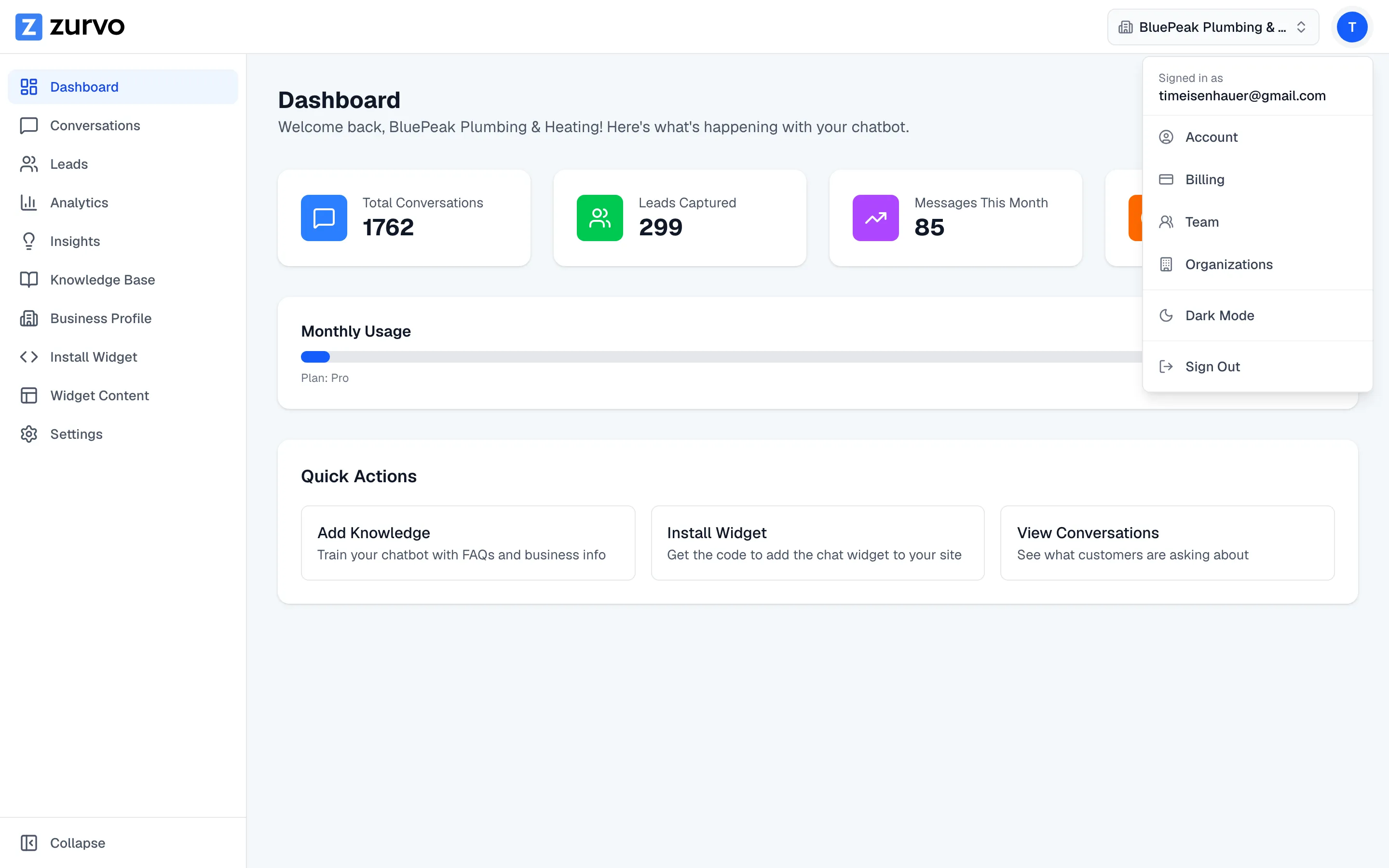
At the top of the app you’ll find your avatar menu, and — if organizations are enabled on your account, an organization switcher appears at the top of the sidebar. The avatar menu is where Account, Billing, Team, and Organizations live, along with the light/dark mode toggle and sign-out.
Where to go next
New to Zurvo? Follow Your first-week checklist for the recommended path from an empty chatbot to a live one on your site.