Invite and manage your team.
Invite teammates by email, grant each person a role per organization, change roles, remove members, and revoke pending invitations from the Team page.
Your team lives on the Team page, reached from the account menu (your avatar, top-right). You invite a person once to your account, then grant them access to one or more of your organizations — each at its own role. This guide covers inviting people, changing their access, and cleaning up invitations.
Only the account owner can manage the team. Everyone else sees the Team page read-only.
Invite a teammate
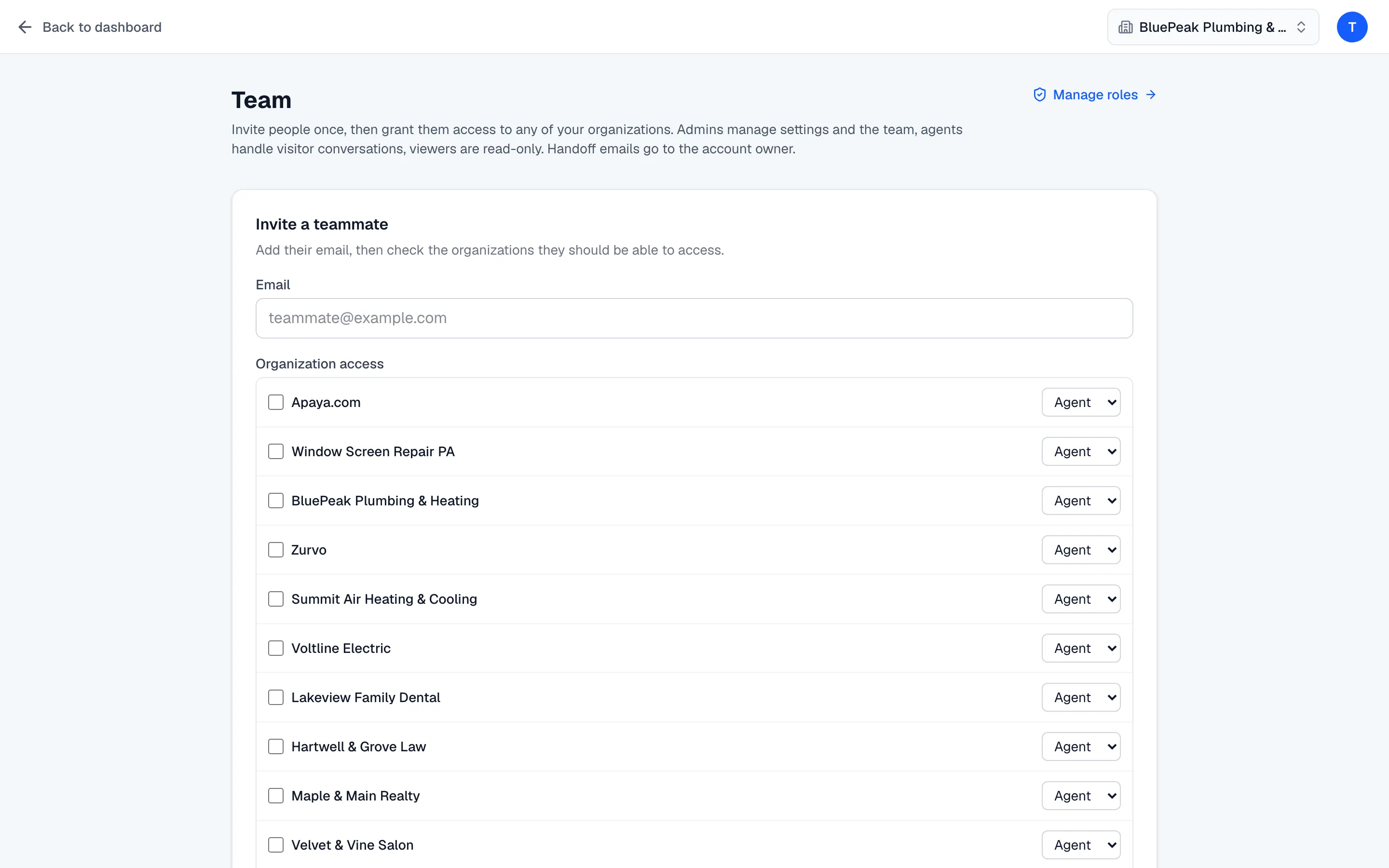
At the top of the Team page, use the Invite a teammate card.
- Enter the person’s email address.
- Under Organization access, check each organization they should be able to use and pick a role for each one from the dropdown. You must select at least one organization.
- Click Send invitation.
If email is configured, Zurvo emails the invitation. If it isn’t, Zurvo shows an invite link with a Copy button — send that link to your teammate yourself. Invitations expire after 14 days.
The accept flow
Your teammate opens the invitation link, signs in (or creates an account) with the same email you invited, and accepts. Once they accept, they appear as an active member and land in your conversations. The invited email must match — an invitation opened by a different address is rejected.
Until they accept, they show as Invited in the People list and their access can’t be edited yet.
Change a person’s role or access
In the People list, each teammate shows their name, email, and a chip for every organization they can access with the role there. To change access, click Manage access on their row.
The panel lists each organization you own with one of two states:
- Granted — a role dropdown to change their role there, plus Remove access to revoke that one organization.
- Not granted — a role dropdown plus Grant access to add that organization.
Changes save as you make them. If the person hasn’t accepted yet, the controls stay disabled with a note that they need to accept first.
Remove a teammate
To remove someone from your account entirely, open Manage access on their row and click Remove from team, then Confirm remove. This revokes all of their organization access at once. You can’t remove yourself, and the account owner can’t be removed.
Revoke a pending invitation
Invitations that haven’t been accepted appear under Pending invitations, with the email, expiry date, and the organizations and roles they cover. Click Revoke on any pending invitation to cancel it before it’s accepted.
To decide which role to give each person, see The built-in roles and what they can do.