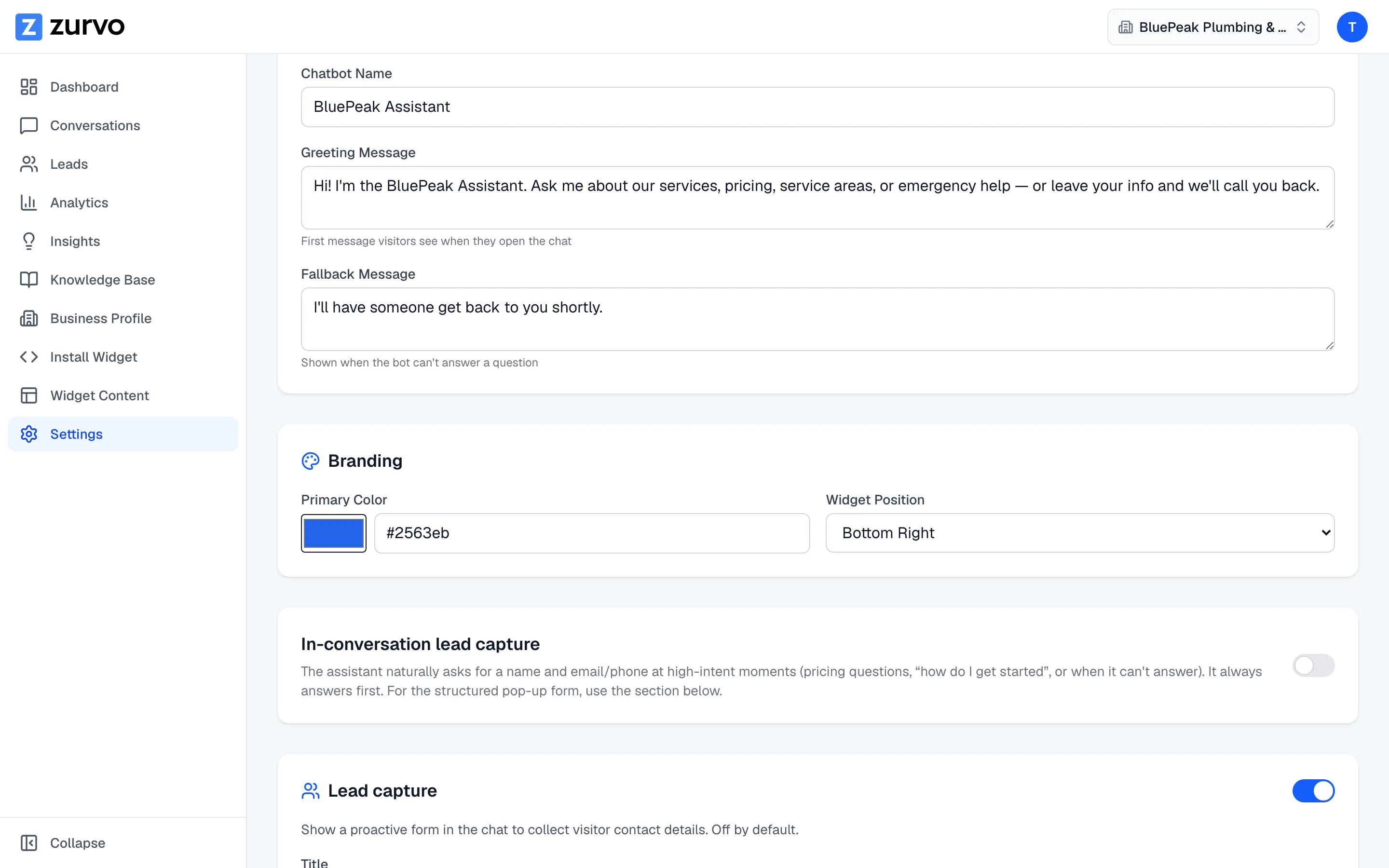
Customize the widget's color and position.
Match the on-site chat widget to your brand — set its primary color, choose which corner of the page it sits in, and save the changes from Settings.
Your chat widget should look like part of your site, not a bolt-on. From your Settings page you can set the widget’s primary color and choose which corner it appears in. This guide walks through both.
Open your widget branding
In the sidebar, go to Settings. Scroll to the Branding card. This is where the widget’s color and position live.
Set your primary color
In Branding, use the Primary Color control to pick your brand color. You can click the color swatch to choose visually, or type an exact hex code (for example #2563eb) into the text field next to it. This color is used for the widget launcher and its accent details.
Choose a position
Use the Widget Position dropdown to pick where the launcher sits on your site:
- Bottom Right — the default.
- Bottom Left — if the right corner is taken by another element on your site.
Save your changes
Click Save Changes at the top of the Settings page. Your updates apply to the live widget wherever it’s installed — you don’t need to touch your website’s embed code.
Turn the open sound on or off
The widget plays a soft chime when it pops up on its own — when the proactive teaser appears or the chat auto-opens. It’s on by default; the Play a sound when the chat opens toggle in the same Settings area turns it off. Browsers only allow sound after the visitor has interacted with the page, so on a freshly loaded page the widget appears silently until the visitor clicks or taps something.
Color and position come from your dashboard, not the snippet
Your widget reads its color and greeting from these dashboard settings, not from the embed code on your site. The install snippet only carries your chatbot ID (and optionally the position). So there’s no need to edit code to restyle the widget — change it here and save.
The one thing you can set in the snippet is position, using a data-position attribute. Setting it in Branding is the simpler path and keeps everything in one place. See Install the chat widget on your site for the snippet details.
The widget header
At the top of the chat, the widget shows your chatbot’s name in your brand color. To change the name shown there, see Set your chatbot’s name, greeting, and fallback message.