Preview and test your widget before you go live.
Use the built-in widget preview to see your chatbot on a simulated version of your page, chat with it, and check your changes before installing on your site.
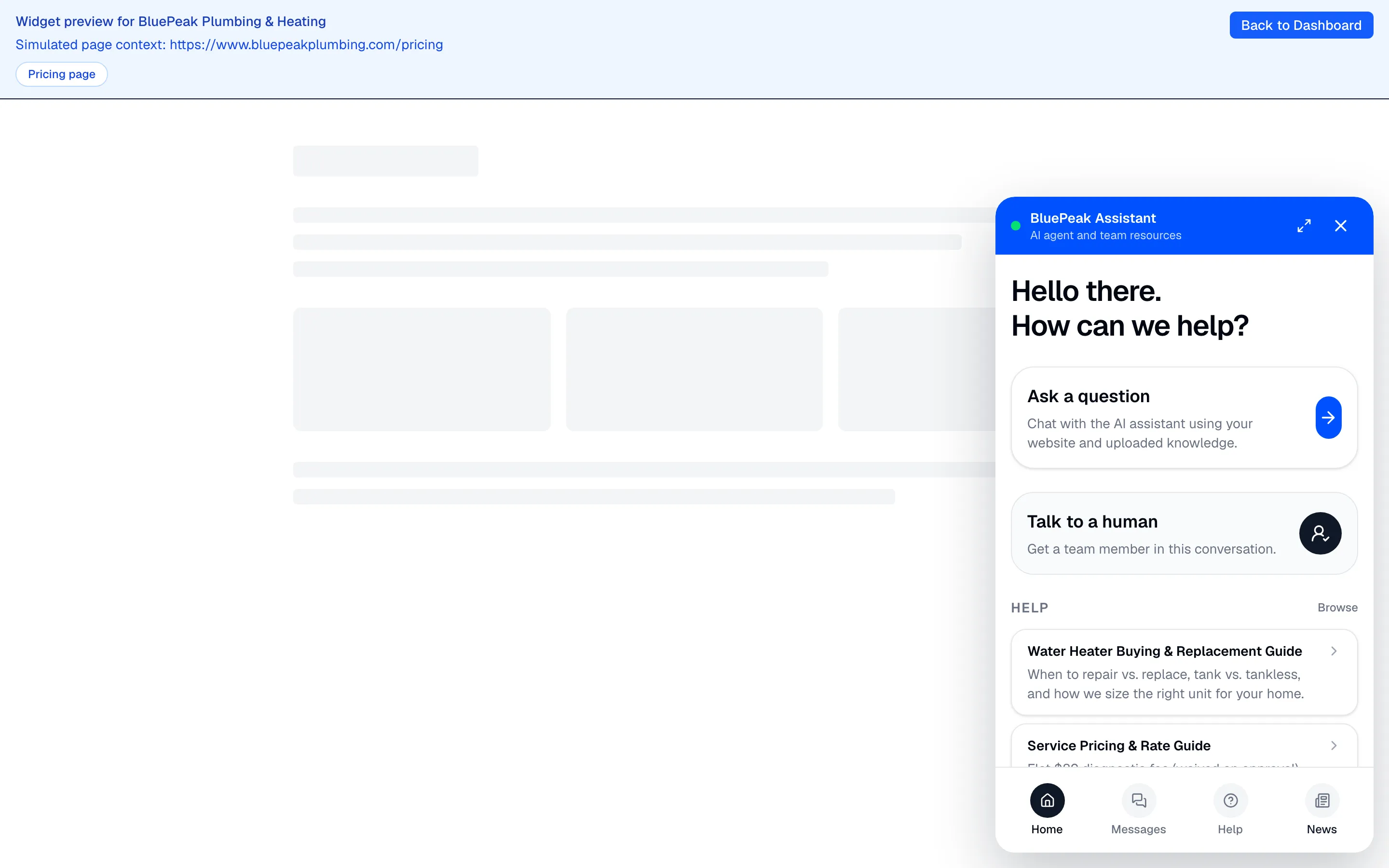
Before you add the widget to your live site, you can preview it exactly as visitors will see it. The preview runs inside your dashboard on a simulated version of your page, so you can check your branding and chat with your bot without touching your website.
Open the preview
Go to Install Widget in the sidebar, then click Open Widget Preview. The preview opens in a new tab.
What you’re looking at
The preview shows a placeholder website with your real chat widget on it. At the top, a banner tells you which of your pages the preview is simulating for context. If you have crawled content, you’ll see buttons to switch the simulated context between your Pricing page, Homepage, and a Feature page — so you can check how the bot answers from different parts of your site.
Test it like a visitor
Open the widget and chat with it the way a customer would:
- Ask the questions your customers actually ask.
- Check that your greeting reads well and your brand color looks right.
- Confirm the launcher sits in the corner you chose.
- Try a question your content doesn’t cover, and confirm the fallback message makes sense.
If something’s off — wrong color, a weak greeting, or an answer that misses — go back to Settings, adjust, save, and reload the preview.
Preview mode shows proactive triggers
The preview always shows your configured proactive teaser or auto-open as a first-time visitor would see it, ignoring the returning-visitor and cooldown rules. That makes it the right place to check your proactive triggers without clearing your browser storage.
When it looks right
Once the preview matches what you want, you’re ready to add the widget to your live site. Head to Install the chat widget on your site.