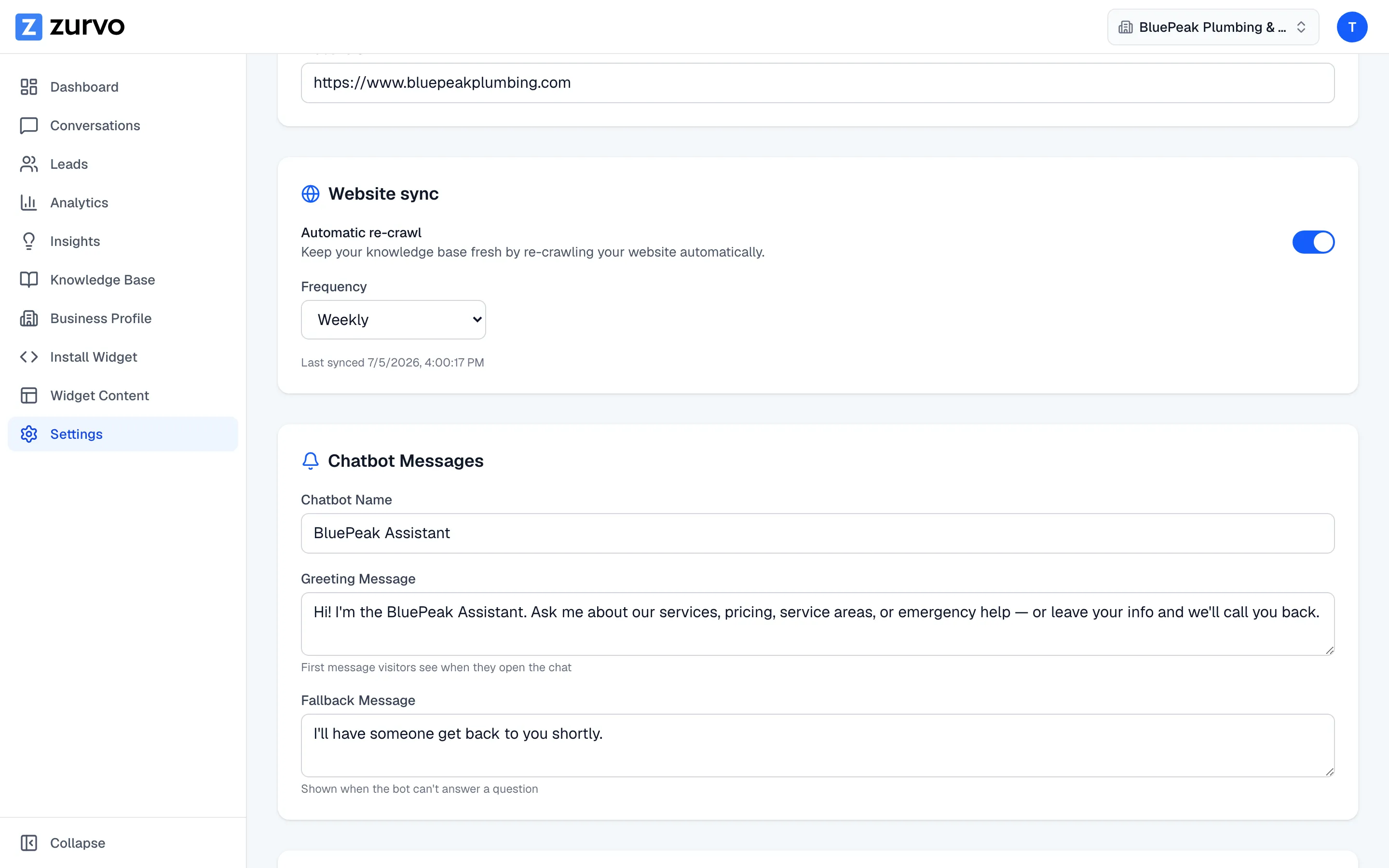
Set your chatbot's name, greeting, and fallback message.
Give your chatbot a name, write the greeting visitors see first, set the fallback for questions it can't answer, and turn the chatbot on or off.
Three short pieces of text shape how your chatbot greets and talks to visitors: its name, its greeting, and its fallback message. You set all three on the Settings page, along with a switch to turn the chatbot on or off.
Open Chatbot Messages
In the sidebar, go to Settings and find the Chatbot Messages card.
Name your chatbot
In the Chatbot Name field, type the name you want shown at the top of the chat window. This is the persona visitors talk to — it can be your brand, a team name, or a friendly first name.
Write the greeting
The Greeting Message is the first message a visitor sees when they open the chat. Keep it short and inviting — a single sentence that tells people what they can ask. This is also the default message used by the proactive teaser if you turn that on.
Set the fallback
The Fallback Message is what the chatbot says when it can’t answer a question from your content. Use it to point people to a next step — for example, offering to take their contact details so your team can follow up. Every fallback is also a signal: if the chatbot falls back often, your Insights will surface those gaps so you can add the missing content.
Save your changes
Click Save Changes at the top of the page. Your name, greeting, and fallback apply to the live widget right away.
Turn the chatbot on or off
At the top of Settings, the Chatbot Status card has a toggle. When it’s on, your chatbot is live and responding to visitors. When it’s off, the chatbot is disabled and won’t answer.
Keep in mind the chatbot also only answers while your organization is on an active trial or subscription. If your plan lapses, the chatbot pauses and shows an upgrade message until you’re back on a plan — separate from this on/off toggle.