Export or delete your account.
Get a full export of your organization's data, or permanently delete an organization from the Danger Zone — a cascading delete that signs you out.
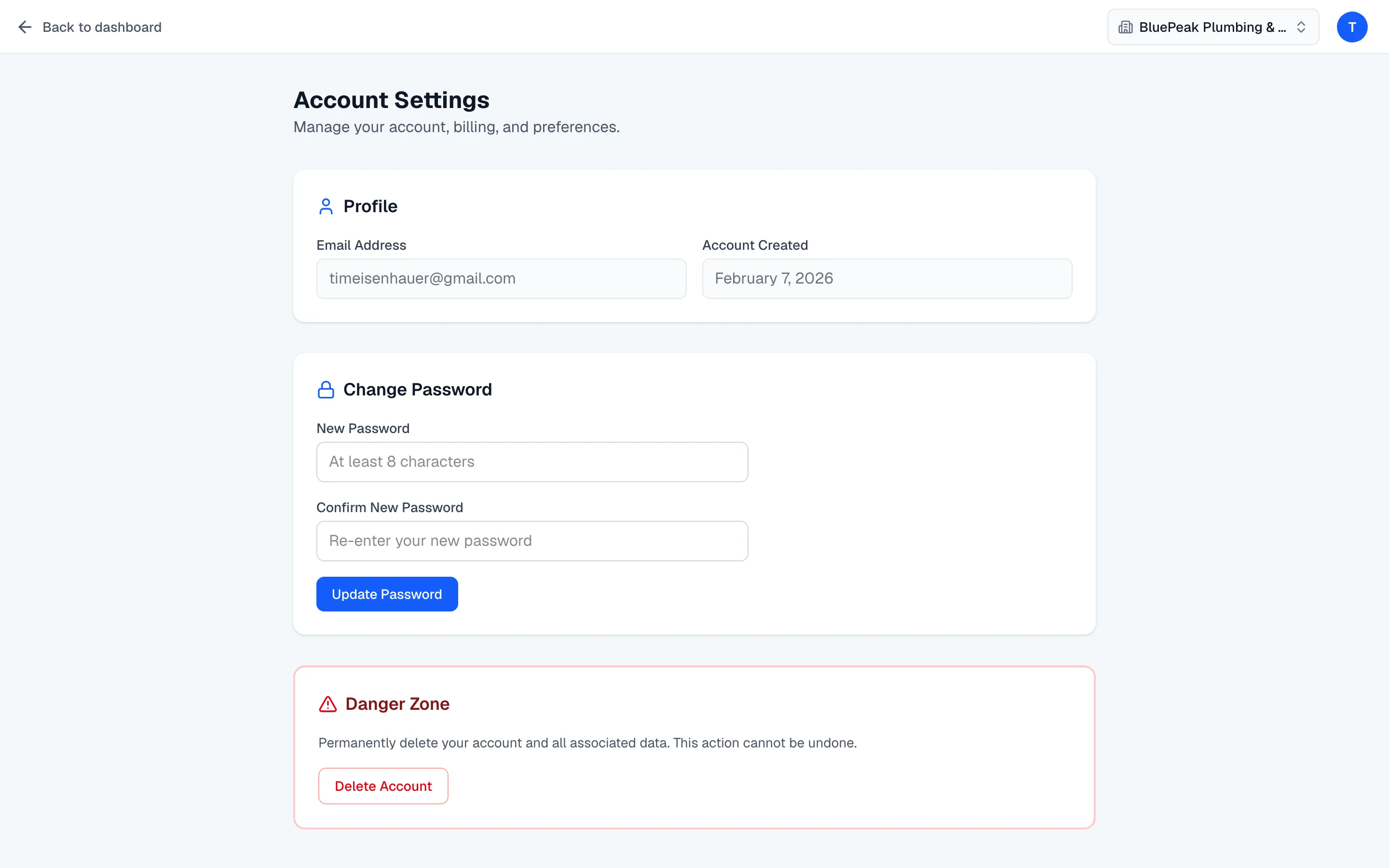
Zurvo keeps your data until you remove it. You can request a full export of your data, or permanently delete an organization from the Account Settings Danger Zone. Deletion is irreversible, so read this before you start.
Export your data
Zurvo can produce a complete export of your account data — your organizations, chatbots, knowledge documents, conversations, messages, leads, and business profiles, along with your billing and log records. It’s a portable snapshot of everything tied to your account, useful for your own records or a migration. To download it, open your avatar menu (top right), go to Billing & Account, and click Export my data — your browser downloads the full export as a JSON file.
Delete an organization
Deleting is permanent. It removes the organization and all of its data — chatbots, the knowledge base, conversations, leads, and settings — in a single cascading delete that cannot be undone.
- Open Account Settings from the avatar menu and scroll to the Danger Zone.
- Click Delete Account.
- In the confirmation box, type DELETE exactly.
- Click Permanently Delete.
When the delete finishes, Zurvo signs you out and returns you to the login page.
What gets removed
The delete cascades through everything belonging to that organization — its messages, conversations, leads, knowledge documents and embeddings, business profiles, chatbots, and the organization record itself, plus its operational logs. Any active Stripe subscription for that organization is cancelled as part of the process.
If you own more than one organization, only the targeted organization is deleted; your login and your other organizations keep working. If it’s your only or last organization, your login and billing account are removed too, fully closing your account.
To manage your plan or billing before deciding, see Manage your plan.