Manage your account.
View your email and account creation date, change your password from Account Settings, and manage notification and lead-capture preferences in Settings.
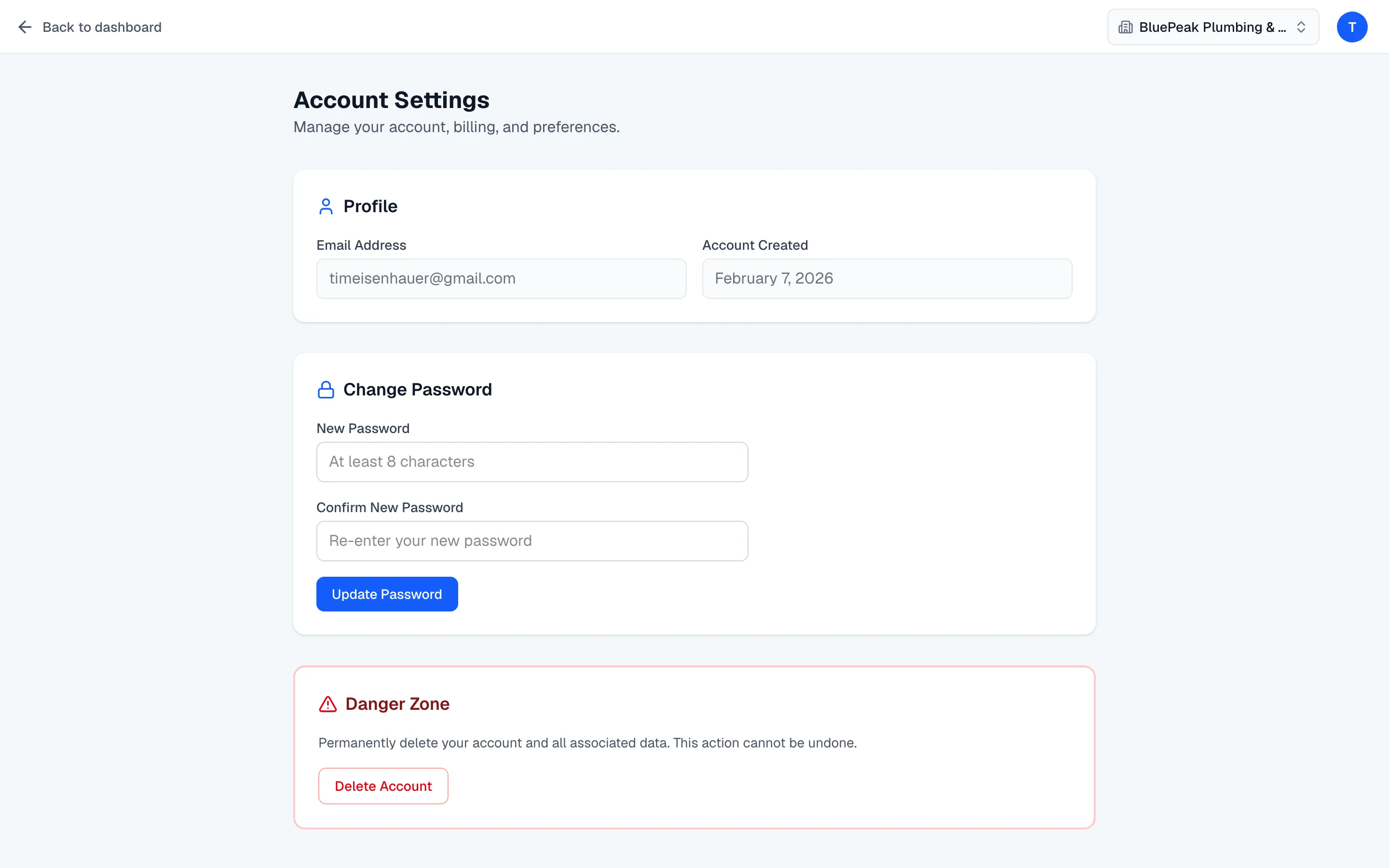
Your account details live on the Account Settings page, reached from the avatar menu at the top of the app. This is where you check your profile and change your password. A few org-specific preferences — notifications and lead capture — live on the Settings page instead.
Your profile
The Profile section shows two read-only fields:
- Email Address — the address you sign in with.
- Account Created — the date your account was created.
Both are read-only here. To change the email on your account, contact support.
Change your password
In the Change Password section:
- Enter a New Password (at least 8 characters).
- Re-enter it in Confirm New Password.
- Click Update Password.
Zurvo confirms when the password is updated. If the two entries don’t match or the password is too short, it tells you before saving.
Notification preferences
Email notifications are managed on the Settings page, under Email notifications. They’re sent to the account owner for events in that organization, and each toggle saves immediately:
- New lead captured — email when the chatbot captures a lead.
- Usage warnings — email when the organization nears its monthly message limit.
- Profile changes — a digest email when a re-crawl updates your chatbot’s business profile.
Lead capture
The in-conversation lead capture toggle also lives on the Settings page. Turn it on to let the chatbot collect visitor contact details during a conversation; it saves the moment you switch it.
To export your data or close your account, see Export or delete your account.