
See how your chatbot captures leads.
Learn the two ways Zurvo turns a chat into a lead — automatic contact capture during conversations and the proactive lead form — and where leads land.
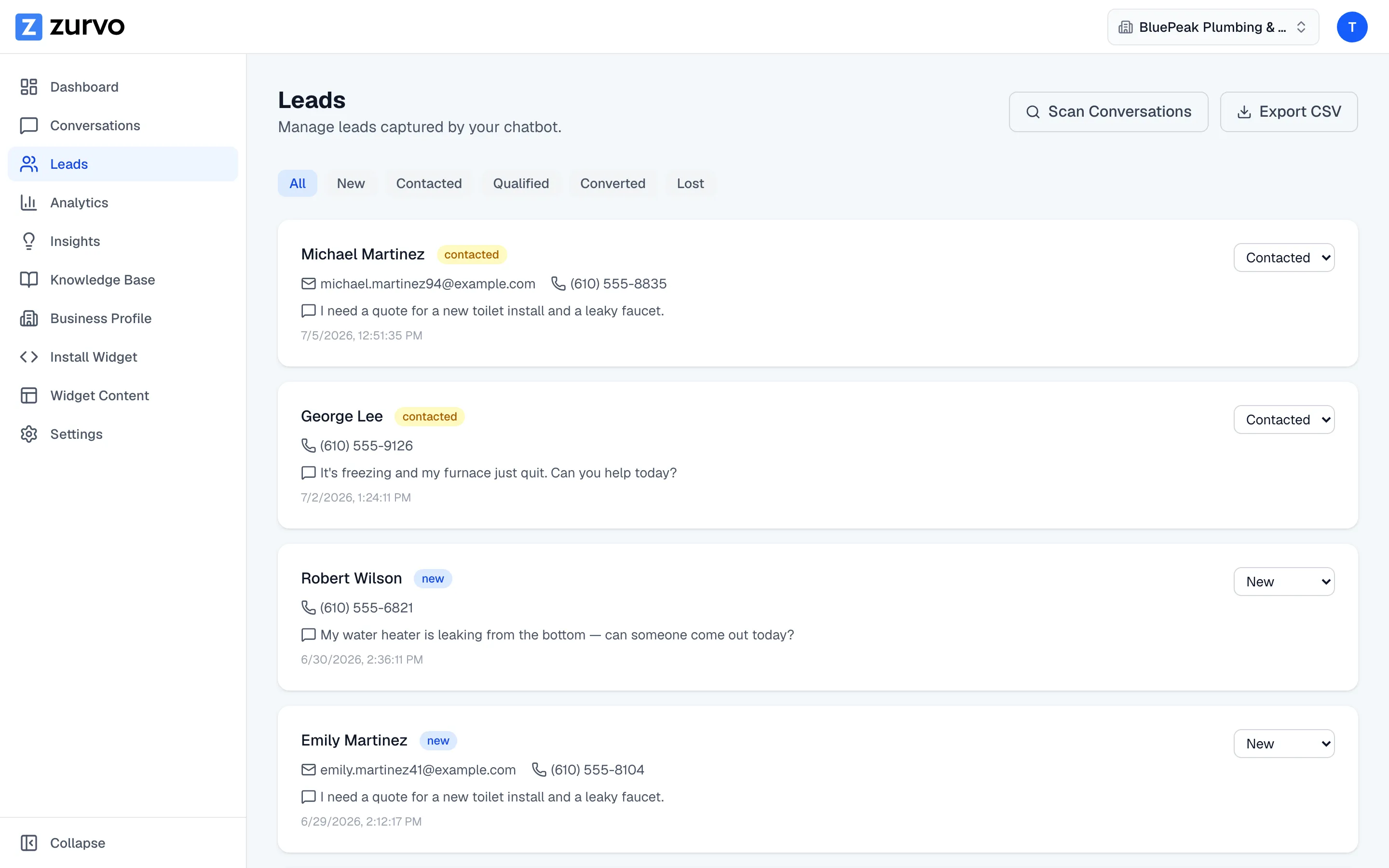
Zurvo turns conversations into leads so you never lose a potential customer’s contact details. There are two ways a lead gets captured, and both land in the same place — the Leads page.
Path 1: automatic capture during a conversation
Your chatbot listens for contact details a visitor shares while chatting — this happens automatically, with nothing to switch on. If someone types their email address or phone number — for example, “Can you email me a quote at jordan@example.com?” — Zurvo saves that conversation as a lead automatically. No form, no interruption.
Along with the email or phone number, Zurvo keeps:
- The visitor’s name, when they mention it.
- The message where they shared their details, so you have context.
- A link back to the source conversation.
This is the effortless path: your chatbot captures the lead in the background while it answers the visitor’s questions.
Path 2: the proactive lead form
The second path is the proactive lead form — a short form your chatbot can offer inside the widget to ask for a name, email, or phone number directly. Turn it on when you want to actively invite visitors to leave their details rather than wait for them to share them in chat.
Leads from the form are captured the same way and show up on the Leads page alongside the automatically captured ones. You turn the proactive lead form on from your Settings page, in the Lead capture section.
Where your leads land
Every captured lead — from either path — appears on the Leads page, newest first. Each one shows the name, email, phone, and message that were captured, a status you can update, and a link to open the conversation it came from.
Turn a chat into a customer
Once a lead is captured, you can work it through your pipeline, export your leads to a CSV, or open the original conversation to see the full context. Start with Manage your leads through the pipeline.