Manage your leads through the pipeline.
Move leads through Zurvo's status pipeline — new, contacted, qualified, converted, lost — filter by status, and work large lists a page at a time.
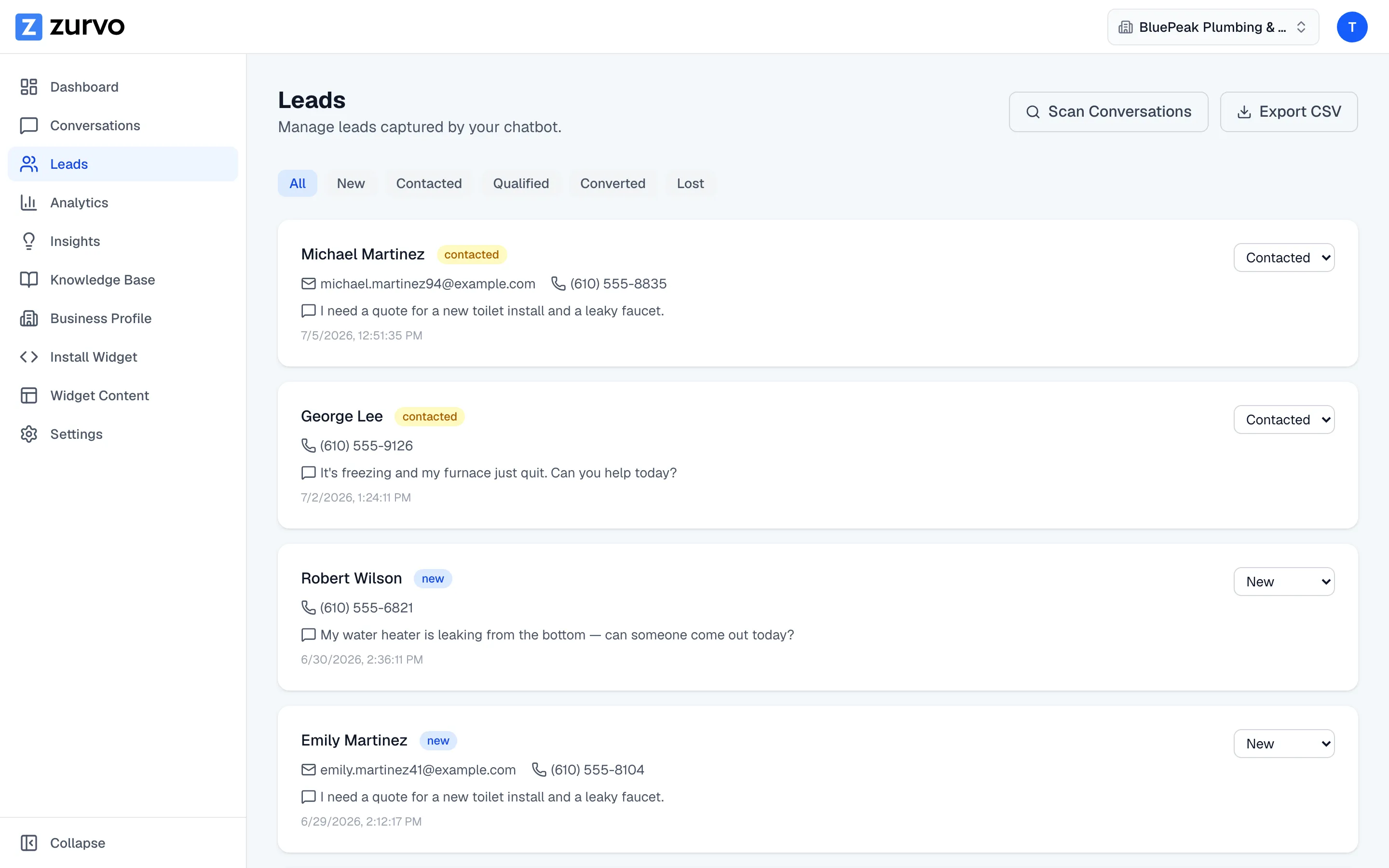
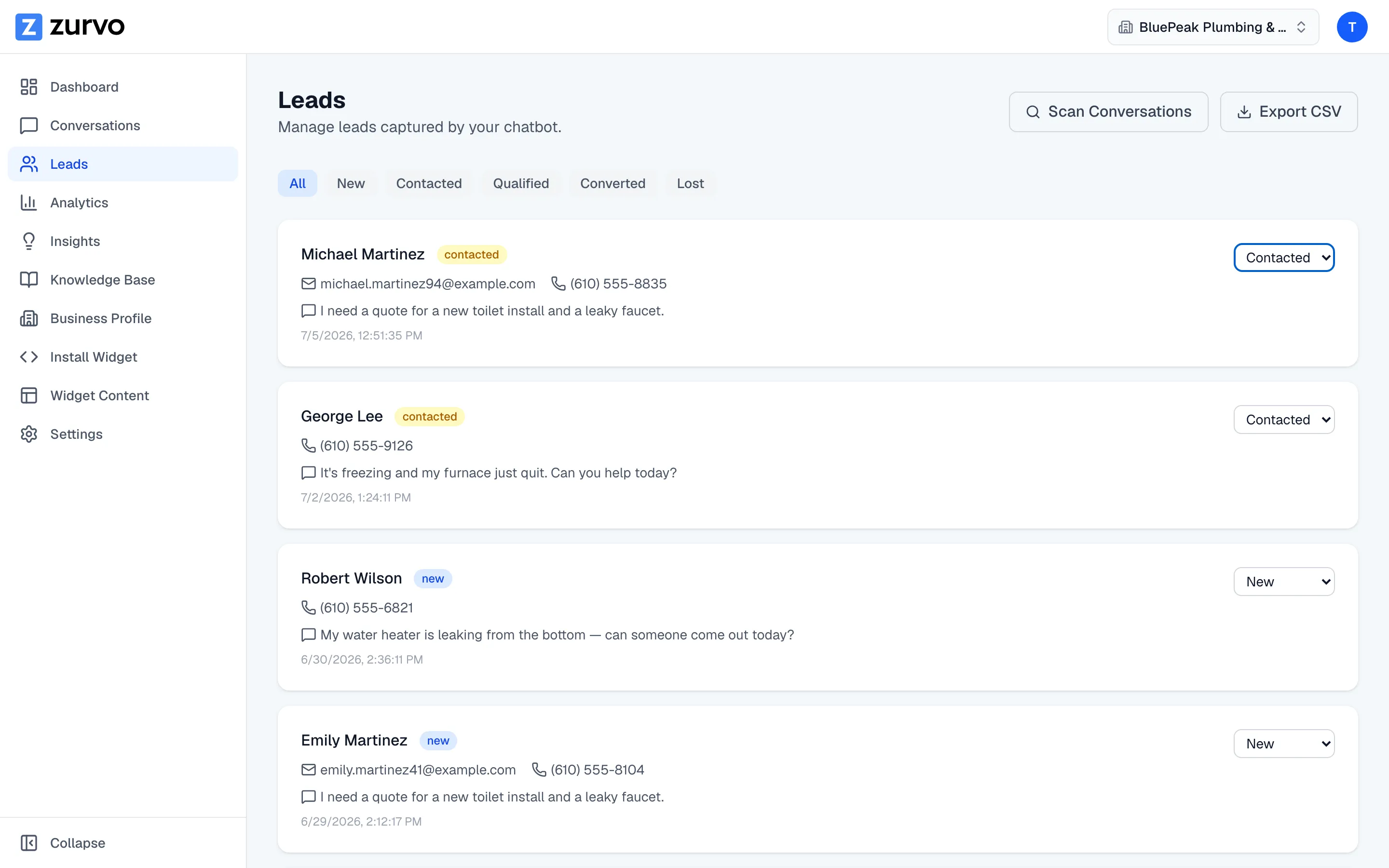
The Leads page is where you work every lead your chatbot captures. Each lead moves through a simple pipeline so you always know what to do next.
The five statuses
Every lead has one of five statuses, shown as a colored badge on its card:
- New — just captured, not yet worked.
- Contacted — you’ve reached out.
- Qualified — a real, promising opportunity.
- Converted — became a customer.
- Lost — didn’t work out.
New leads always start as New. How you move them through the rest is up to you — the pipeline mirrors a normal follow-up process, but there are no forced steps.
Change a status inline
To update a lead, use the status dropdown on the right of its card and pick the new status. The change saves instantly — there’s no separate save button. If saving fails for any reason, the card reverts to its previous status so what you see always matches what’s stored.
Filter by status
Above the list is a row of filter buttons: All, New, Contacted, Qualified, Converted, and Lost. Click one to show only the leads in that status — handy when you want to see, say, everything still marked New that needs a first touch. Click All to go back to the full list.
Work large lists a page at a time
Your leads are listed newest first. When you have more than a page of them, the list paginates so it stays fast and easy to scan — use the page controls at the bottom to move through them. Changing the filter takes you back to the first page of that filtered view.
Next steps
Ready to hand your leads to the rest of your workflow? You can export them to a CSV or open the conversation each one came from.