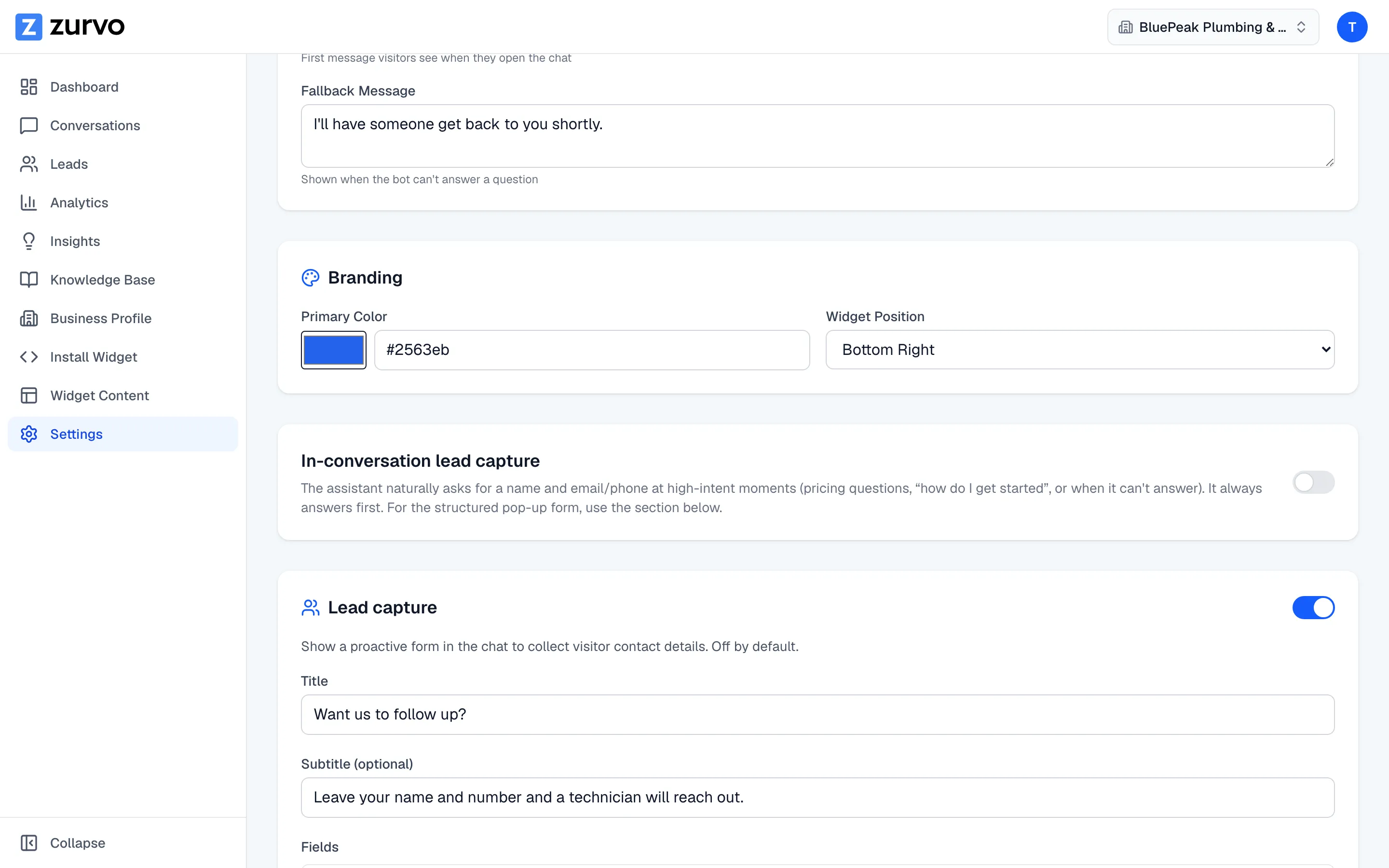
Set up the proactive lead form.
Turn on the in-chat lead form to collect visitor contact details — set the title and subtitle, choose which fields show and which are required, and pick when it appears.
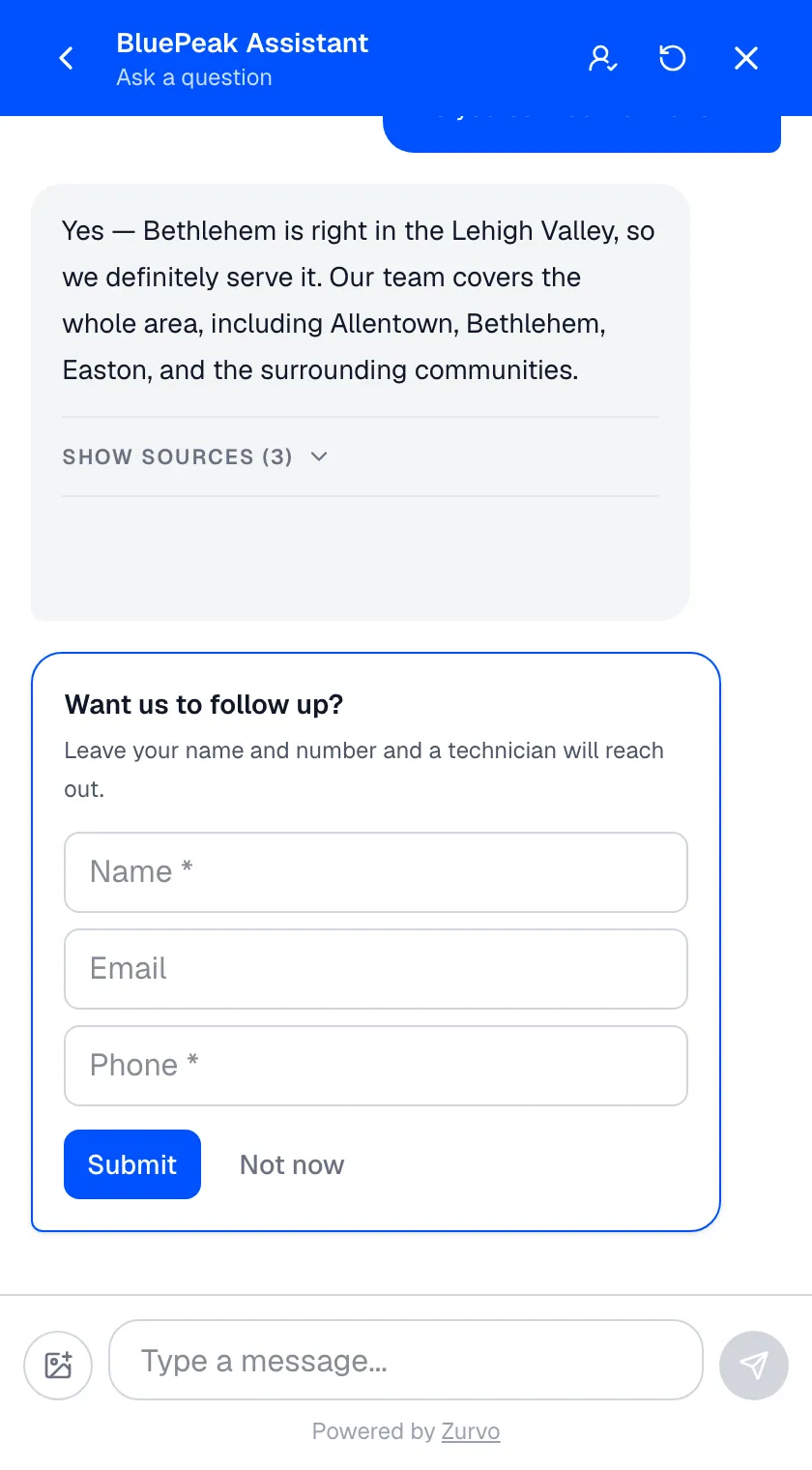
The proactive lead form is a small form shown inside the chat that collects a visitor’s contact details so your team can follow up. It’s off by default — this guide turns it on and sets it up.
Turn on lead capture
Go to Settings in the sidebar and find the Lead capture card. Flip the toggle in its header to enable it. The rest of the options appear once it’s on.
Write the title and subtitle
- Title — the form’s heading (for example, “Want us to follow up?”). Keep it short and clear about what happens next.
- Subtitle — optional supporting text under the title, if you want to add context or reassurance.
Choose which fields to show
The form can collect three fields: Name, Email, and Phone. For each one you decide:
- Show — whether the field appears on the form.
- Required — whether the visitor must fill it in to submit.
Two rules keep the form usable: marking a field Required automatically shows it, and hiding a field clears its Required flag. At least one of email or phone must be shown — that’s the contact method your team uses to follow up.
Choose when it appears
Use When to show to pick the trigger:
- Immediately when chat opens — the form is the first thing the visitor sees.
- After the first message — the form appears once the visitor has sent one message.
- After a number of messages — set a count, and the form appears after that many messages.
If you pick the last option, a Number of messages field appears where you set the count (from 1 to 20).
Save your changes
Click Save Changes at the top of Settings to publish the form. Submissions flow into your Leads so your team can act on them.
Two ways to capture leads
This structured form is one of two lead-capture tools. The other is In-conversation lead capture, a separate toggle on the same Settings page: instead of a form, the assistant naturally asks for a name and email or phone at high-intent moments and always answers the question first. You can use either, both, or neither — they’re independent.