Troubleshooting FAQ.
Quick answers to common Zurvo issues — a reached message limit, a stuck crawl, a rejected file or photo, a handoff not notifying you, and missing emails.
Quick answers to the issues customers run into most. If your chatbot has stopped answering entirely, start with Troubleshoot a chatbot that won’t answer; if the widget isn’t appearing, see Fix a widget that isn’t showing.
”This chatbot has reached its message limit”
Every plan includes a fixed number of messages per month, capped hard with no overage. When you hit the cap, the bot stops answering and visitors see this message until your billing cycle resets.
Check the usage bar on your dashboard home to see where you stand. To keep answering now, upgrade your plan for a higher monthly allowance. On a 3-day trial the cap is lower (50 messages), so a busy trial can reach it quickly.
My website crawl is stuck or I canceled it
A crawl runs as a background job and shows live progress while it works through your pages. Larger sites take longer, so a crawl that looks “stuck” is often still running — give it time and watch the progress count.
Each plan has a page cap on how much of your site Zurvo crawls, and during a trial that cap is lower (100 pages). If the crawl finished but missed pages, you may have reached the cap. You can cancel a running crawl at any time and recrawl later. See Training your chatbot for crawl options, including how often Zurvo re-crawls your site.
My document upload was rejected
Zurvo accepts these document types for training, each with a size cap:
| Type | Max size |
|---|---|
| 20 MB | |
Word (.docx) | 10 MB |
PowerPoint (.pptx) | 20 MB |
Text (.txt) | 5 MB |
Markdown (.md) | 5 MB |
If your upload was rejected, it’s almost always because the file type isn’t supported or it’s over the size limit for that type. For an oversized PDF, try splitting it into smaller files or exporting a lighter version. You can also paste the text directly or add a single URL to scrape instead of uploading a file.
A visitor’s photo wasn’t accepted
The chat widget lets visitors attach images the chatbot can read — up to 4 images per message, each up to 10 MB. Accepted formats are common raster images: JPG, PNG, WebP, and GIF.
SVG files are rejected on purpose, because they can carry scripts. Zurvo also verifies the actual image data rather than trusting the file name or extension, so a non-image renamed to .jpg won’t be accepted. If a photo won’t attach, confirm it’s one of the accepted formats and under the size limit.
A handoff came in but I wasn’t notified
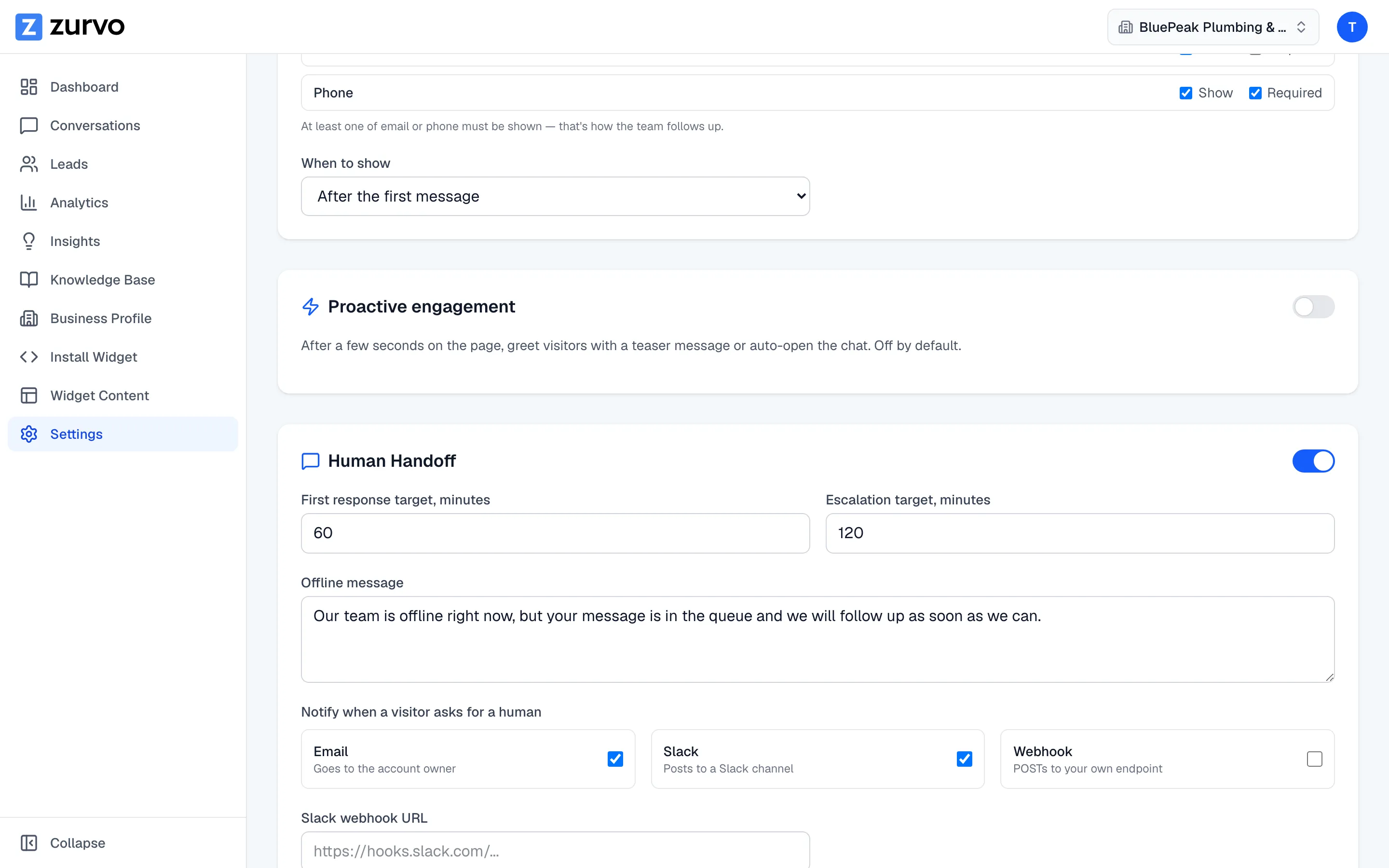
When a visitor asks to talk to a human, Zurvo can notify your team by email and by Slack. If a handoff happened but no alert arrived:
- Confirm human handoff is enabled in your settings — if it’s off, visitors get your after-hours message instead of reaching a person.
- Check which notification channels are turned on, and that the destination is correct (the right email address; a connected Slack).
- Every handoff still appears in your conversations inbox regardless of notifications, so you won’t lose it — the inbox is the reliable place to catch handoffs.
I’m not receiving Zurvo emails
If notification or account emails aren’t arriving, check your spam or junk folder first, then confirm the email address on your account is correct. If you use a work domain with strict filtering, ask your IT team to allow email from Zurvo. Handoffs and leads are always visible in your dashboard even when an email doesn’t reach you, so nothing is lost while you sort out email delivery.
Something else?
If your issue isn’t here, reach out and we’ll help. It’s useful to tell us your chatbot’s ID (shown on the install page), what you expected, and what happened instead.