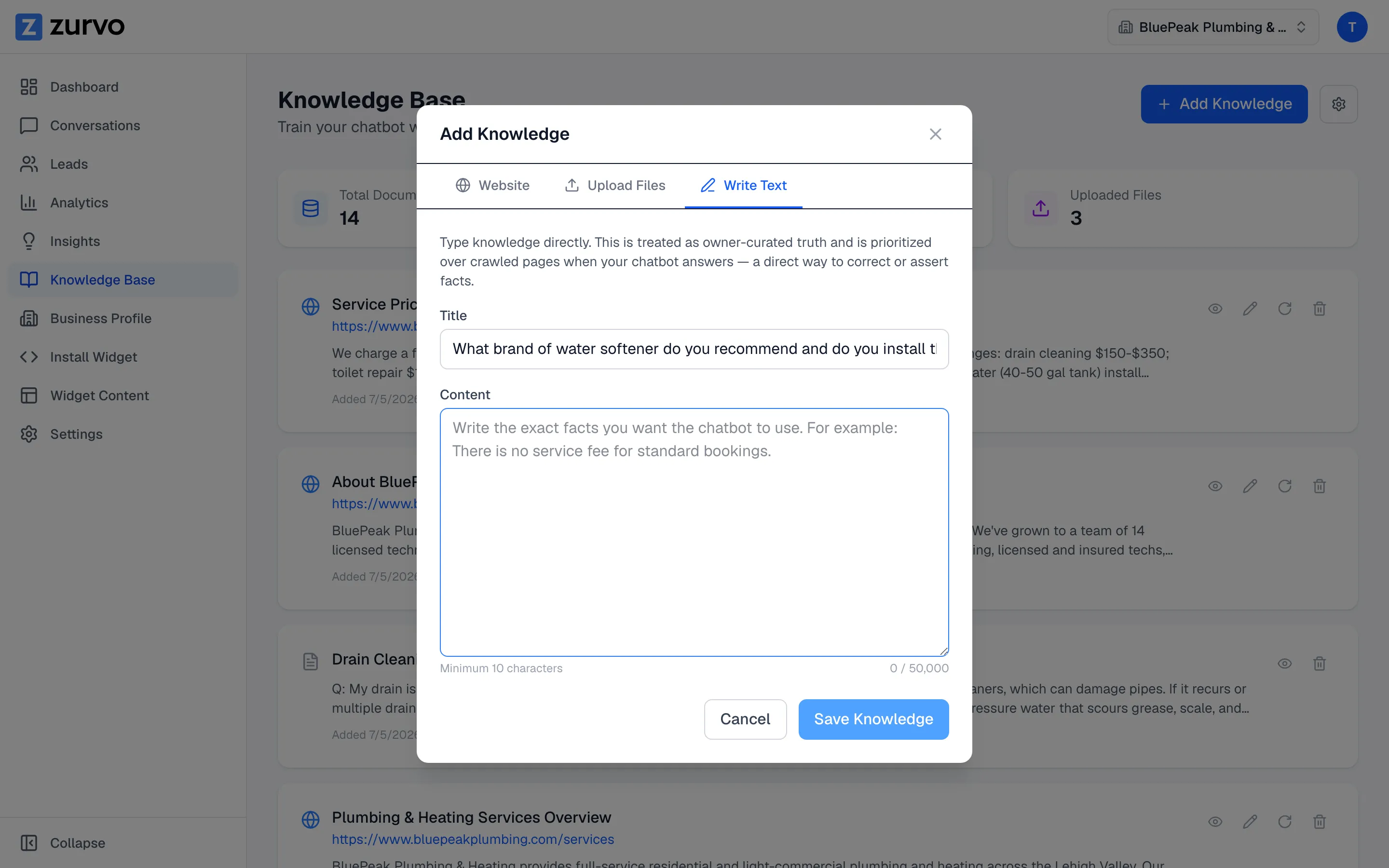
Fix a gap with the Answer this loop.
When Insights surfaces a question your chatbot couldn't answer, one click carries it into the knowledge editor with the answer pre-titled — fix the gap in seconds.
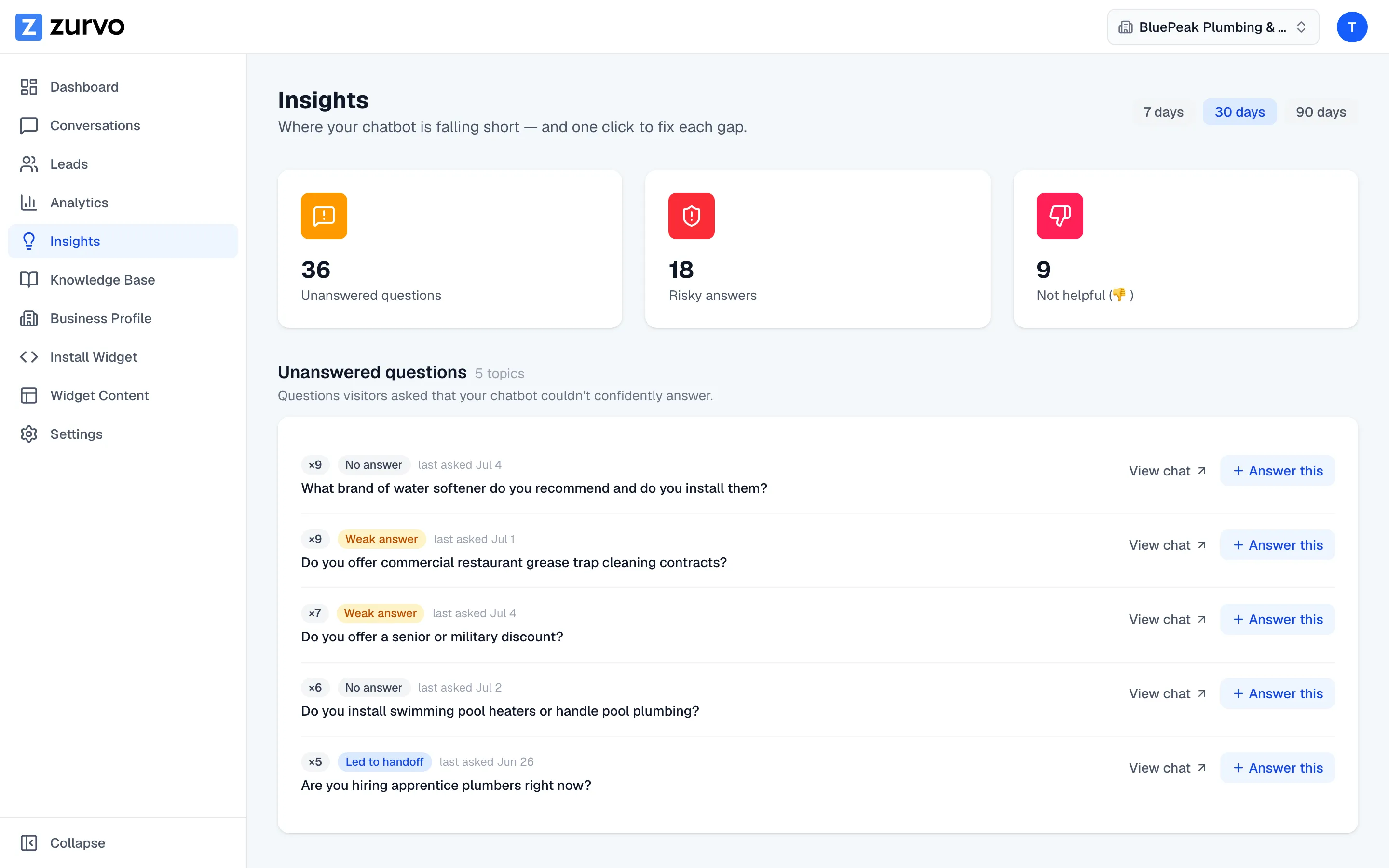
Every question your chatbot couldn’t answer well is a chance to make it better. Zurvo turns those moments into a fast, one-click fix loop that runs from Insights into your knowledge base. This guide walks through it.
Find the gaps in Insights
Open Insights from the sidebar. It lists real questions visitors asked that your chatbot couldn’t answer confidently — the ones where it held back, answered weakly, or handed off to your team. Each is a gap worth closing.
Click “Answer this”
Next to a question, click Answer this. Zurvo opens the knowledge editor with:
- the visitor’s question pre-filled as the title, and
- the content field ready for you to type the answer.
Write the answer and save
Type the answer the way you’d want your chatbot to say it, then click Save Knowledge. The answer is stored as owner-curated knowledge — the kind your chatbot prioritizes when it answers — so the next visitor who asks gets a confident reply.
Why this loop works
You don’t have to guess what to add to your knowledge base. Your customers tell you, through the questions they actually ask. The Answer this loop turns each real gap into a quick edit, so your chatbot steadily covers more ground — driven by what people want to know rather than what you assumed they’d ask.
For more ways to add knowledge directly, see Add knowledge by typing text or scraping a URL.