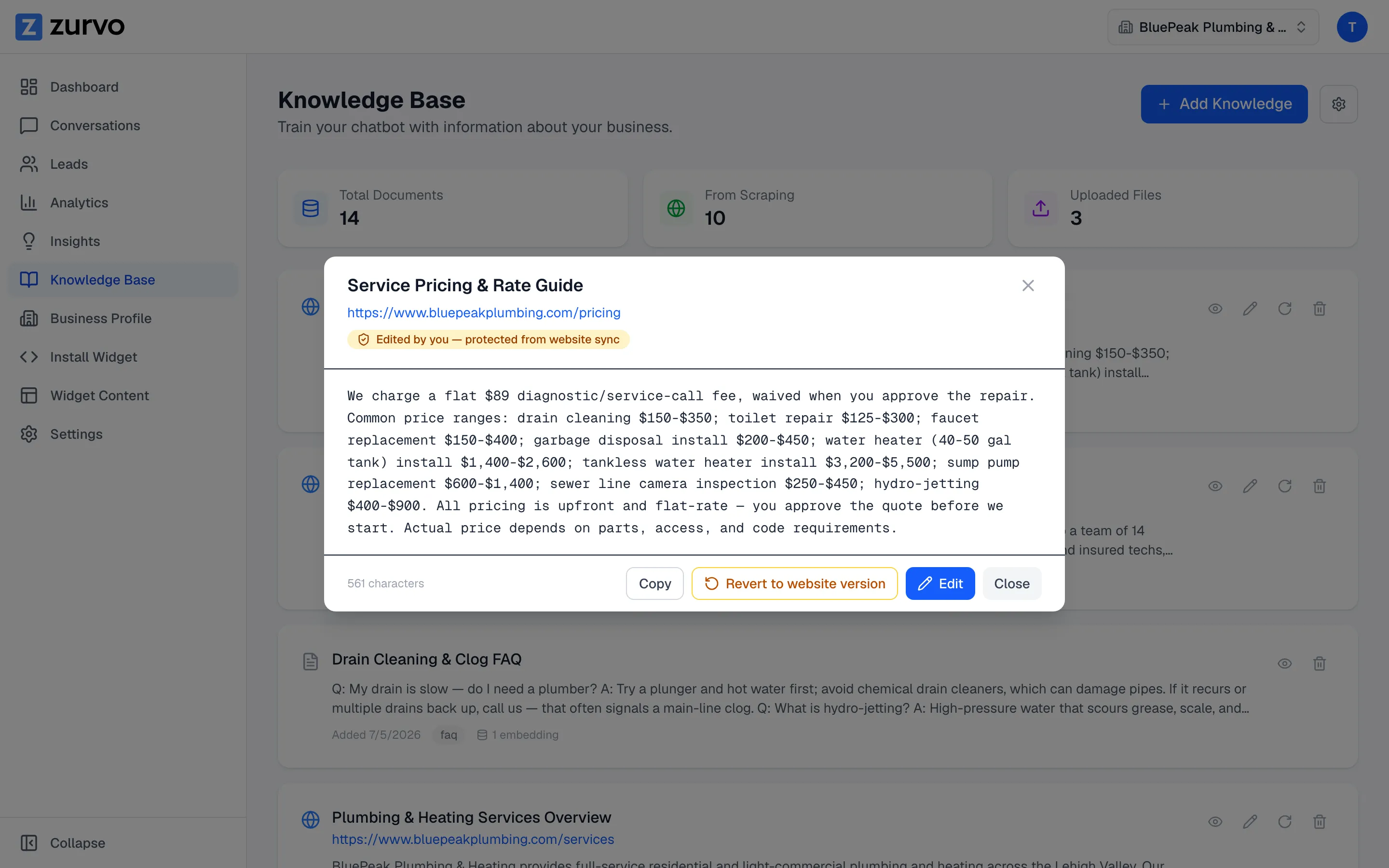
Review, edit, and delete knowledge documents.
Open any document to read it, edit its content, or delete it — one at a time or all at once — so your chatbot always answers from clean, accurate knowledge.
Your knowledge base is a list of documents — crawled pages, uploaded files, and text you’ve typed. You can open any one to read it, fix its content, or remove it. This guide covers all three.
Review a document
On the Knowledge Base page, each document shows its title, source, and a short preview. Click the view (eye) button on a document to open it and read the full content. Crawled pages link to their source URL; uploaded files show the filename; typed entries are marked Curated.
Edit a document
To change what a document says:
- Click the edit (pencil) button on the document, or open it and click Edit.
- Update the title or content.
- Click Save changes.
Zurvo re-processes the updated content so your chatbot answers from your new version. When you edit a crawled page, it’s marked Edited by you and protected from being overwritten the next time your site is crawled — see Protect your edits.
Delete a document
To remove a single document, click the delete (trash) button on it and confirm. The document and its content are removed from your knowledge base.
Delete everything
To clear your whole knowledge base and start fresh:
- Click the settings (gear) button in the top right.
- Choose Delete All.
- Confirm — this can’t be undone.
Deleting is permanent, so if you only want to refresh crawled content rather than remove it, use re-crawling instead.