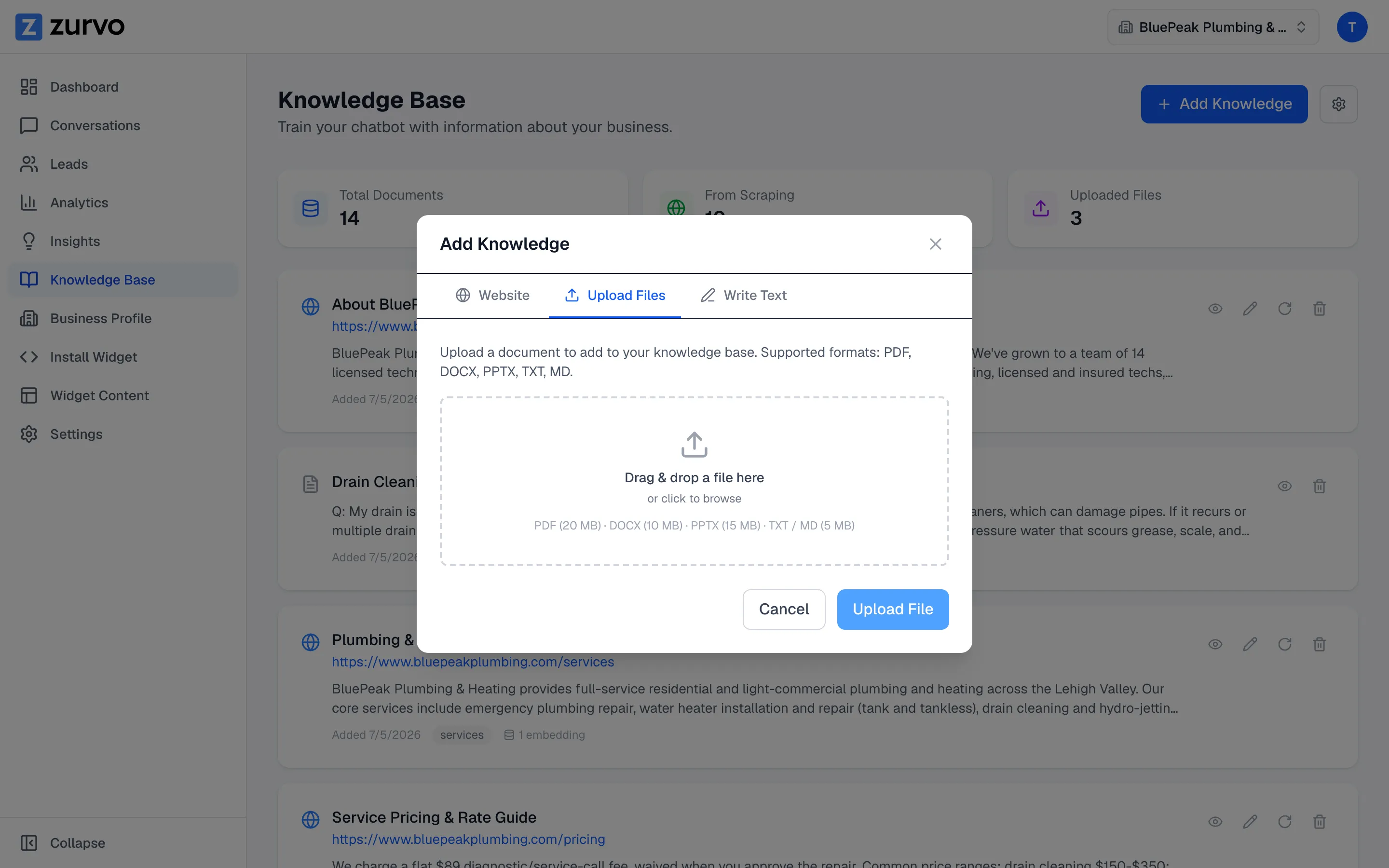
Upload documents to your knowledge base.
Add PDFs, Word docs, PowerPoint decks, and text files to your chatbot's knowledge base — Zurvo extracts the content, chunks it, and makes it searchable.
Not everything your chatbot needs lives on your website. Price sheets, policy documents, product specs, and FAQs often live in files. Upload them and Zurvo reads them into the same knowledge base your chatbot answers from.
Upload a file
- Open Knowledge Base from the sidebar.
- Click Add Knowledge in the top right.
- Switch to the Upload Files tab.
- Drag and drop a file onto the upload area, or click to browse and choose one.
- Click Upload File.
Supported files and size limits
Zurvo accepts these formats, each with a maximum file size:
| Format | Maximum size |
|---|---|
| 20 MB | |
| DOCX (Word) | 10 MB |
| PPTX (PowerPoint) | 20 MB |
| TXT | 5 MB |
| MD (Markdown) | 5 MB |
If you pick an unsupported file type or a file that’s too large, Zurvo tells you before uploading so you can swap it for one that fits.
What happens after upload
When you upload a file, Zurvo:
- Extracts the text from the document.
- Splits it into searchable chunks.
- Creates embeddings so your chatbot can find and answer from it.
When it finishes, you’ll see a summary — how many characters were extracted, from how many pages, and how many chunks and embeddings were created. The file then appears as a document in your knowledge base, where you can view, edit, or delete it.
When to upload versus crawl
Crawling is best for content that lives on your website. Uploading is best for everything else — internal documents, brochures, or files you haven’t published. You can mix both: crawl your site, then upload the extra files that round out what your chatbot knows. For short facts you’d rather just type, see add text or a single URL.