Crawl your website to train your chatbot.
Point Zurvo at your website and it crawls your pages into a searchable knowledge base — with a live progress view, per-plan page caps, and a cancel button.
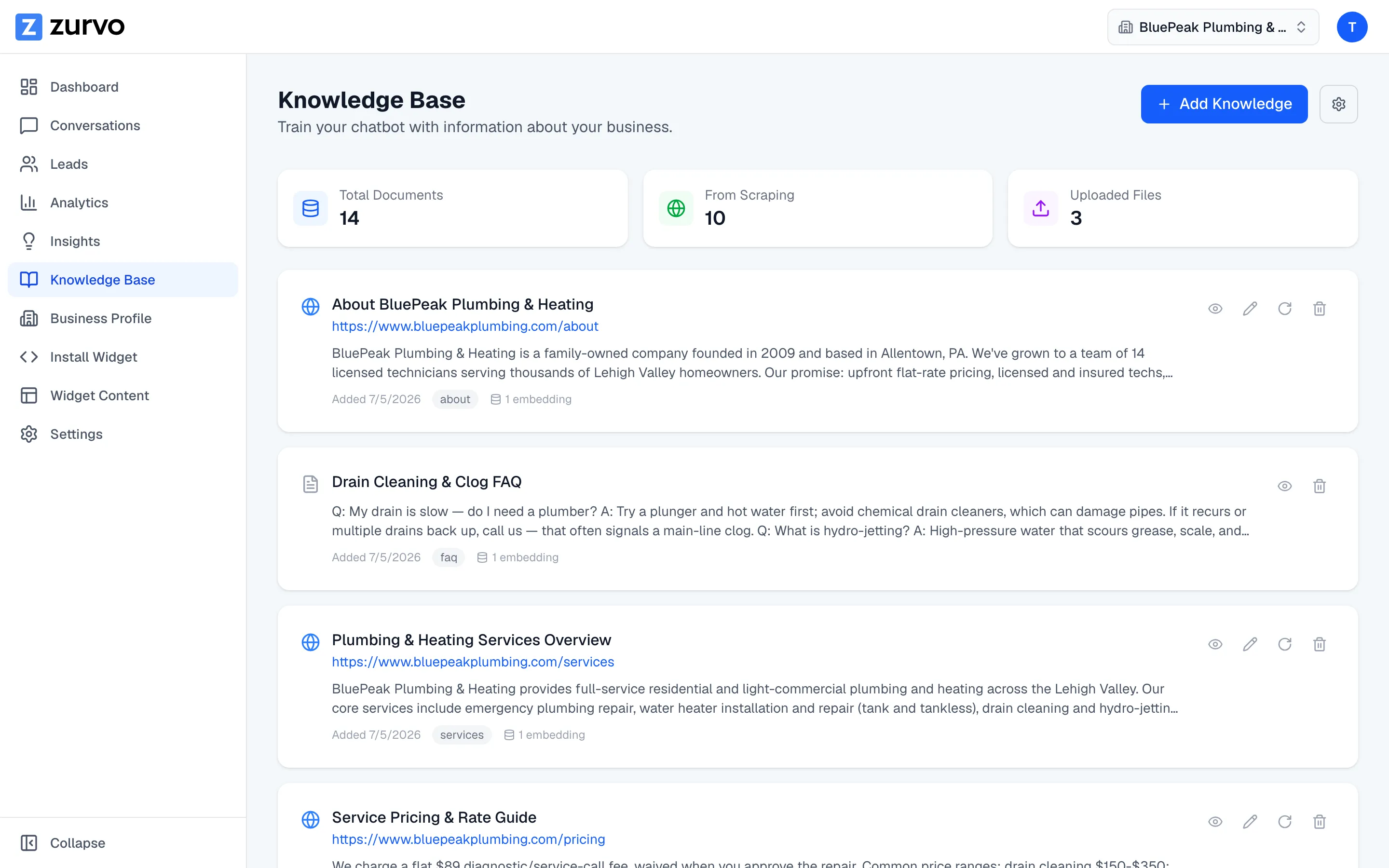
Your chatbot answers from a knowledge base, and the fastest way to fill it is to crawl your website. Zurvo visits pages on your site, reads them, and turns them into searchable knowledge. This guide covers how to start a crawl, what you’ll see while it runs, and the page limits per plan.
Start a crawl
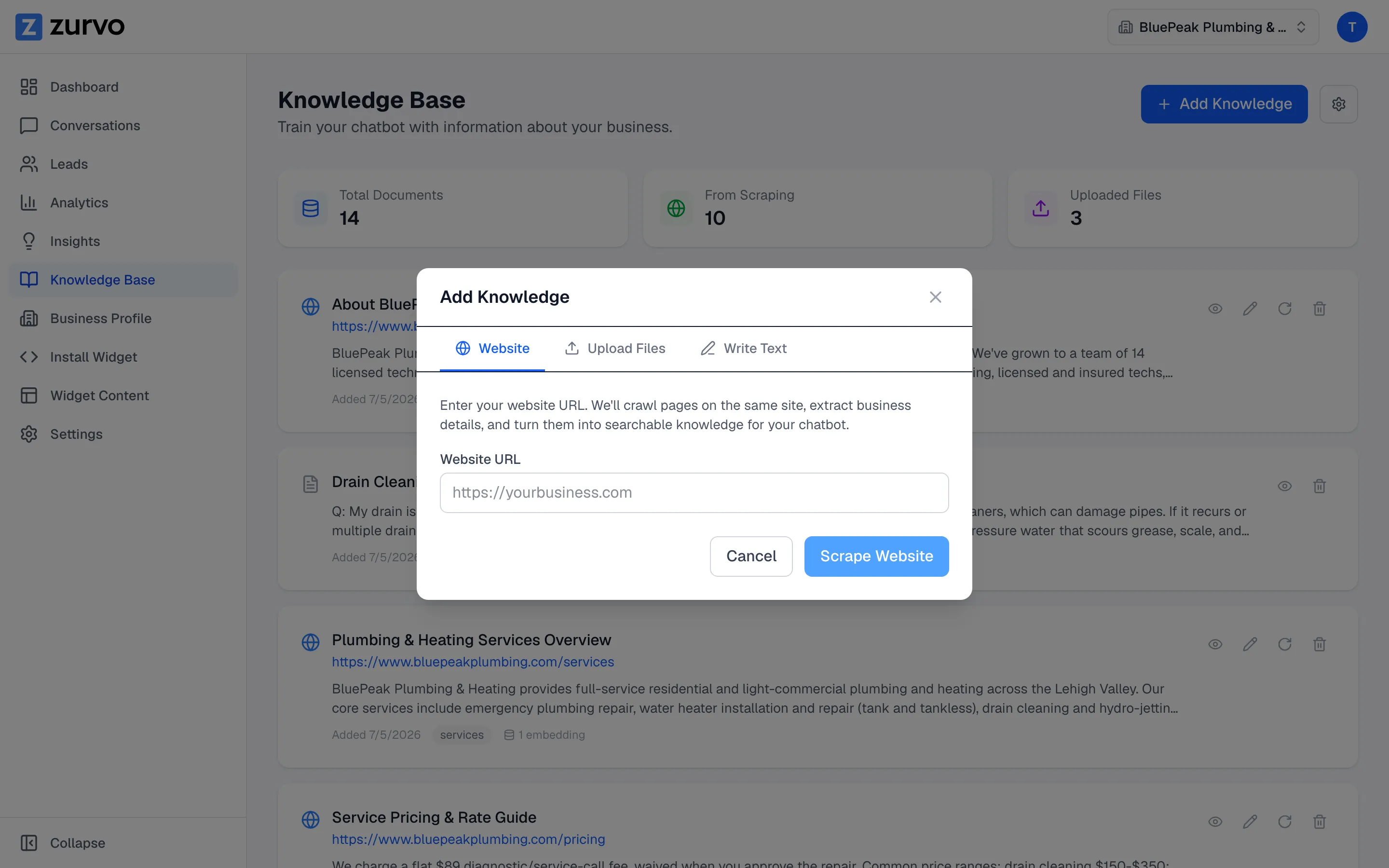
- Open Knowledge Base from the sidebar.
- Click Add Knowledge in the top right.
- On the Website tab, enter your website URL (for example,
https://yourbusiness.com). - Click Scrape Website.
Zurvo crawls pages on the same site, extracts your business details, and turns them into searchable knowledge for your chatbot.
What discovery does
Starting from the URL you enter, Zurvo follows links to discover other pages on the same site and crawls them too. You don’t list pages one by one — point it at your homepage and it finds the rest, up to your plan’s page cap.
Watch live progress
While a crawl runs, a progress view keeps you posted. The first saved pages often appear later in the run, because Zurvo analyzes content before storing it. You’ll see:
- Pages Crawled — how many pages have been fetched, and how many are imported so far.
- Last Activity — when the most recent page was saved (for example, “Just now” or “2m ago”).
- What’s Happening — the current stage, such as crawling and extracting details, or saving pages and embeddings.
- Latest Page Activity — the title and URL of the most recent page saved.
An elapsed-time badge shows how long the crawl has been running. On larger sites the view can pause while extraction and embedding catch up — that’s expected, not a stall.
Page caps by plan
How many pages Zurvo crawls depends on your plan:
| Plan | Pages crawled |
|---|---|
| Launch | 100 |
| Growth | 300 |
| Scale | 1,000 |
During your 3-day free trial, the crawl is capped at 100 pages regardless of plan, so you can test Zurvo end to end before you’re billed. Your full page cap applies once the trial converts to a paid subscription.
Cancel a crawl
If you started a crawl by mistake or want to stop it early, click Cancel in the progress view. Any pages already saved stay in your knowledge base — cancelling only stops fetching more.
What you get when it finishes
When the crawl completes, Zurvo shows how many pages it saved, how many links it discovered, and how many embeddings it created. It also summarizes the structured details it pulled out — products, services, FAQs, team members, contact info, service areas, and policies. Those details flow into your business profile, which you can review and edit.
From here, you can upload documents for anything not on your site, or learn how to keep your crawl fresh.